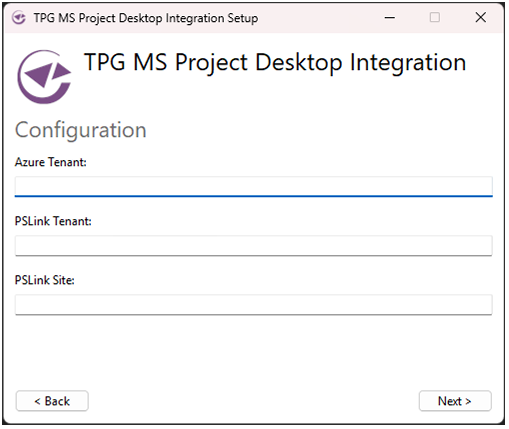
Standard UI Installation
Use this option for a manual installation using the graphical setup wizard.
Installation Steps
➢Start the installer: TPG MS Project Desktop Integration <version>.exe
➢Welcome & License: Review the license agreement and click the checkbox I agree to the license terms and conditions to accept the terms to proceed.
➢Click the Options button:
Specify a custom installation directory or keep the default location: C:\Program Files\TPG MS Project Desktop Integration
➢Configuration: Click Next to enter the configuration data (see next section below)
➢Click Install to begin the installation process.
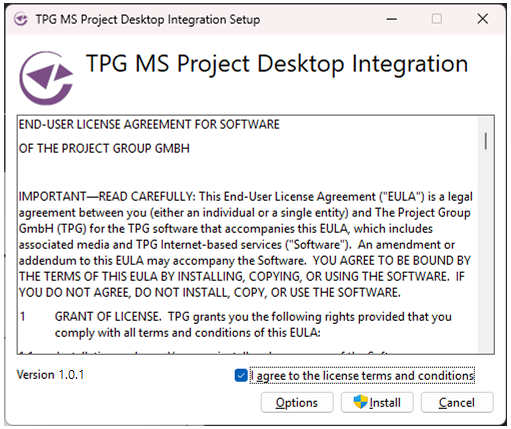
➢Setup Options: Specify a custom installation folder or leave the default.
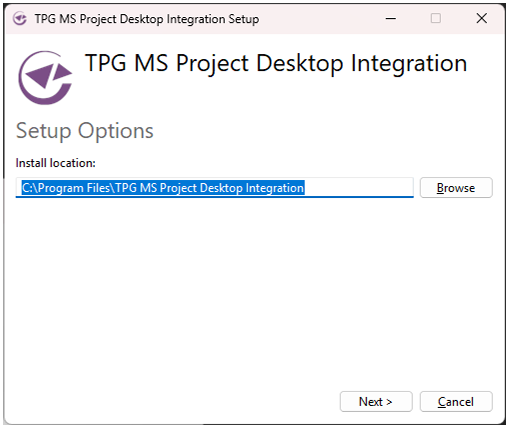
➢Configuration: The following configuration options are available:
▪Azure Tenant: (Optional) The Azure tenant identifier. Alternatively, you can specify a linked domain, such as “theprojectgroup.com”
▪PSLink Tenant: The PSLink tenant name or ID
▪PSLink Site: The PSLink site name or ID.