Change color of Task bar
|
Task planning in the Schedule > Task Attributes > Change color of Task bar |
To highlight tasks in the TPG Scheduler, you can select colors for the task bars.
Change the color of task bars:
➢Right-click on the task in the table or the task bar in the Gantt chart. ▶ The drop-down menu opens.
➢Click on Color. ▶ The color palette opens.
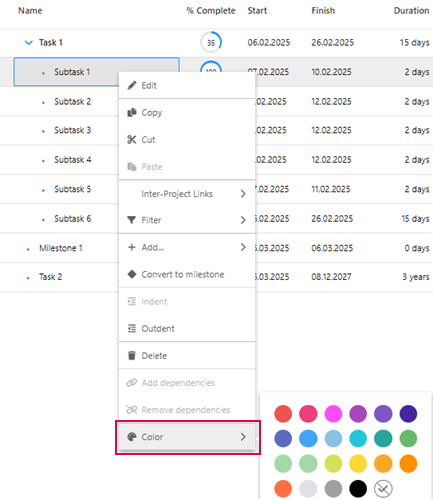
➢Click on the desired color in the color palette.
▶ The color of the task is changed.
Or
➢Open the information window of the task. (see Define dependencies between tasks - Information Window)
➢Click on the Color field. (1) ▶ The color palette opens.
➢Click on the desired color in the color palette. (2)
➢Click on Save. (3)
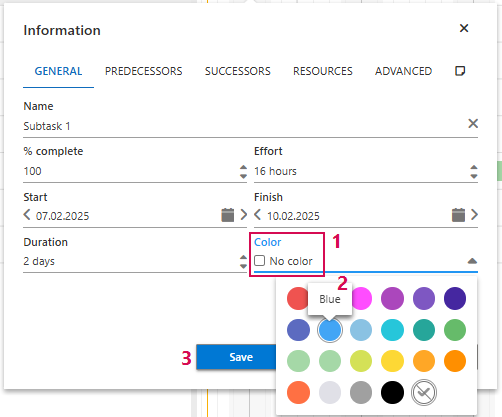
▶ The color of the task is changed.
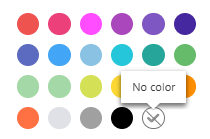
▶ If you want to reset the color to the default setting, select No color in the color palette.
▶ The color selected for a summary task is also applied to the subtasks.
▶ You can assign a different color to subtasks by defining a different color for individual tasks. To do this, proceed as described above.