Licenses
In this section, you will find all the features for managing the licenses stored in PPP. This includes viewing existing license information, such as type and validity. It also describes how to update existing licenses and add new ones.
There are two ways to access the License Overview:
➢Click Licensing in the About section. (see About)
Or
➢Click Licenses in the navigation bar.
▶ The License Overview opens.
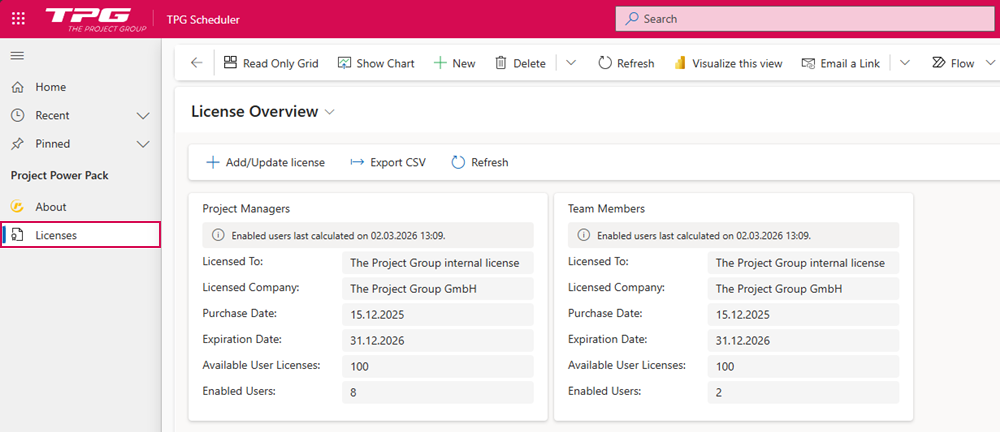
When you open the Licenses section, the license overview is displayed by default. In this view, you can see all currently registered licenses.
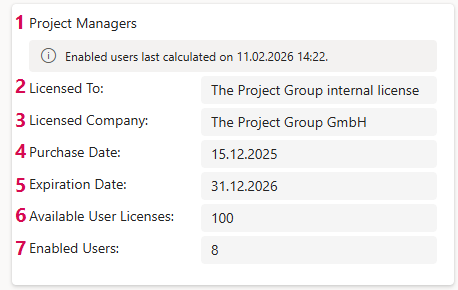
You can use the drop-down menu to switch to a different view:
▪All Licenses: Tabular list of all licenses
▪Inactive Licenses: Tabular list of all inactive licenses
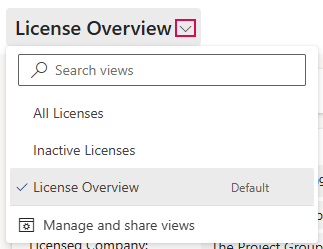
Each license comes with a license card (e.g., Project Managers) that displays the relevant details:
▪License Type: (1)
Specifies the type of license purchased, e.g., Project Manager, Project Team, or other available role or feature packages. The license type determines which features and permissions are available within PPP.
▪Licensed to: (2)
Displays the name of the person or organization to whom the license was issued.
▪Licensed Company: (3)
Specifies the company to which the license is assigned.
▪Purchase Date: (4)
The date on which the license was purchased.
▪Expiration Date: (5)
The date on which the license expires.
▪Available User Licenses: (6)
Total number of user licenses provided with the purchased license.
▪Enabled Users: (7)
Number of users to whom a license has already been assigned.
Add or update licenses:
➢Click Add/Update license. ▶ The dialog box for entering the license key opens.
➢Select the license type from the License Name drop-down menu. (1)
➢Enter the License Key. (2)
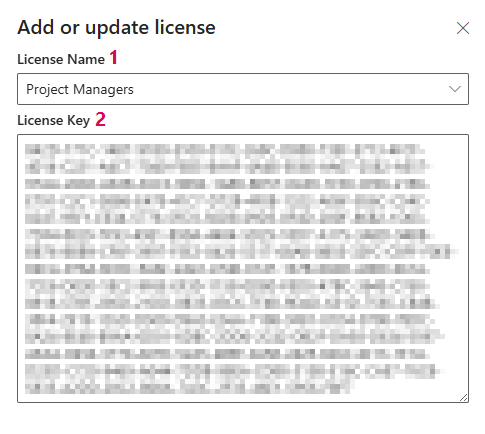
➢Click Validate License to add or update the license.. (3)

▶ The license has been added or updated.
▶ During the initial deployment of PPP, the licenses are initially installed by a TPG consultant. Administrators do not need to perform this step themselves.
For subsequent license changes or extensions, TPG will provide a new license key. This license key will be sent to you and can then be updated as described above.
Additional features:
▪Export CSV: Download CSV file
▪Refresh: Reload the license card display