Edit Actions
|
Actions > Actions - current Project > Edit Actions |
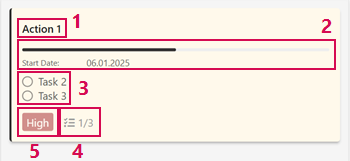
You can edit actions in the Kanban view. Information about the action is displayed in the Kanban view:
▪Name of the action (1)
▪Progress of the action (2)
▪Open tasks within the action (3)
▪Completed tasks within the action (4)
▪Priority (5)
Change the name of the action:
When you create a new action, the name is New item by default.
➢Double-click on New item. ▶ A text field appears.
➢Enter the name for the action.
▶ The action is renamed.
Edit action in the form:
➢Double-click on the action.
Or
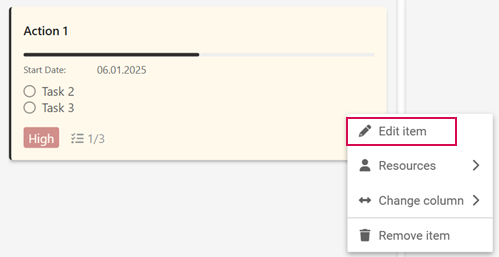
➢Right-click on the action. ▶ A drop-down menu opens.
➢Click on Edit item.
▶ The form for editing the action opens.
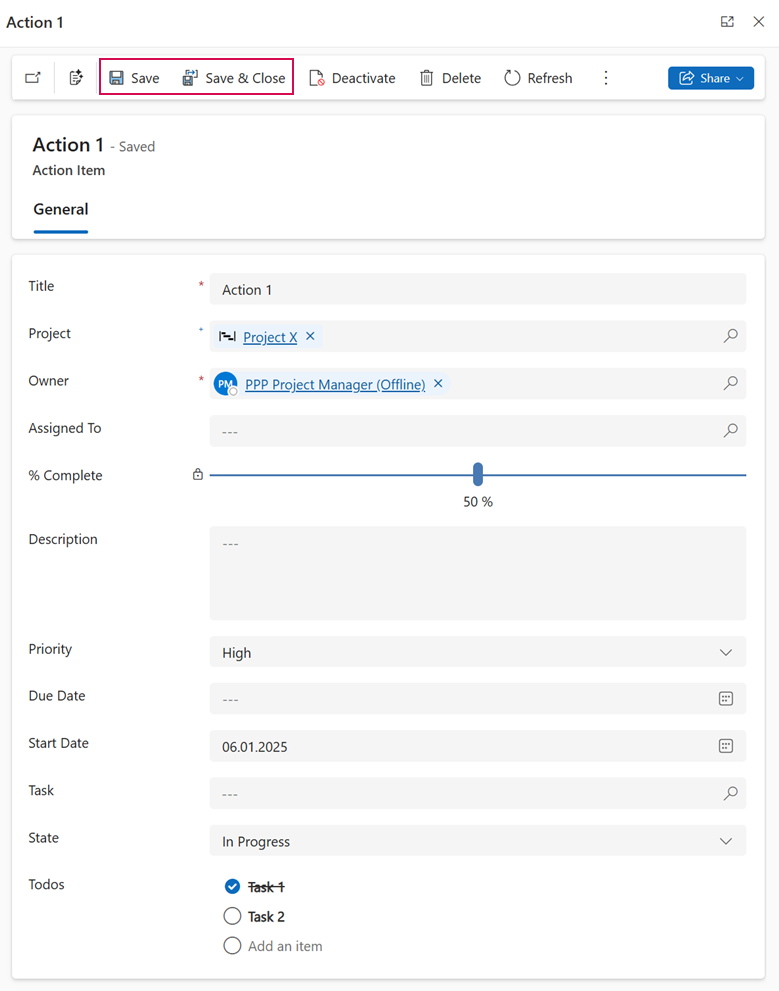
Fill in the following fields:
▪Title: Name of the action
➢Click in the text field to edit the name of the action.
▪Project: Project to which the action is assigned.
➢Click on the search icon (magnifying glass) in the text field to select another project in the drop-down menu to which you want to assign the action.
▪Owner: Person who created the action.
➢Click on the search icon (magnifying glass) in the text field to select another owner from the drop-down menu.
▪Assigned To: Person to whom the action is assigned.
➢Click on the search icon (magnifying glass) in the text field to select a person in the drop-down menu to whom the action is to be assigned.
▪%Completed: Progress bar of the action. The progress is shown as a percentage.
➢Click on the slider and, holding down the mouse button, move it to the desired position to change the progress.
▪Description: Description of the action.
➢Click in the text field and enter the description.
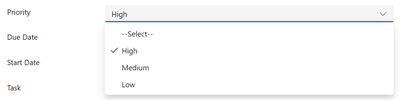
▪Priority: Priority of the task.
➢Click on the arrow in the text field. ▶ A drop-down menu opens.
➢Click on High, Medium or Low.
▪Due Date:
➢Click in the text field. ▶ The calendar opens.
➢Select the due date of the action.
▪Start Date:
➢Click in the text field. ▶ The calendar opens.
➢Select the start date of the action.
▪Task: Assign a task to the action.
➢Click in the text field. ▶ A drop-down menu opens.
➢Click on the task that you would like to assign to the action.
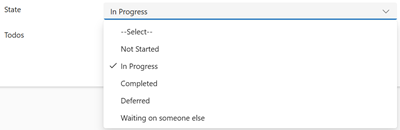
▪State: State of the action
➢Click in the text field. ▶ A drop-down menu opens.
➢Click on the state of the action.
▪Todos: Tasks within the action.
➢Click on Add an item. (1) ▶ A text field appears.
➢Enter the name of the task and confirm with the Enter key.
➢Click on the delete icon (2) to delete a task.
➢Click in the circle (3) to mark the task as completed.
➢Click on the 6 dots (4) to change the order of the tasks using drag & drop.

➢Click on Save or Save and Close to complete the editing of the action.