Add Stakeholders
To add a Stakeholder, proceed as follows:
➢Click on New Stakeholder. ▶ The Quick Create: Stakeholder form for creating a Stakeholder opens.

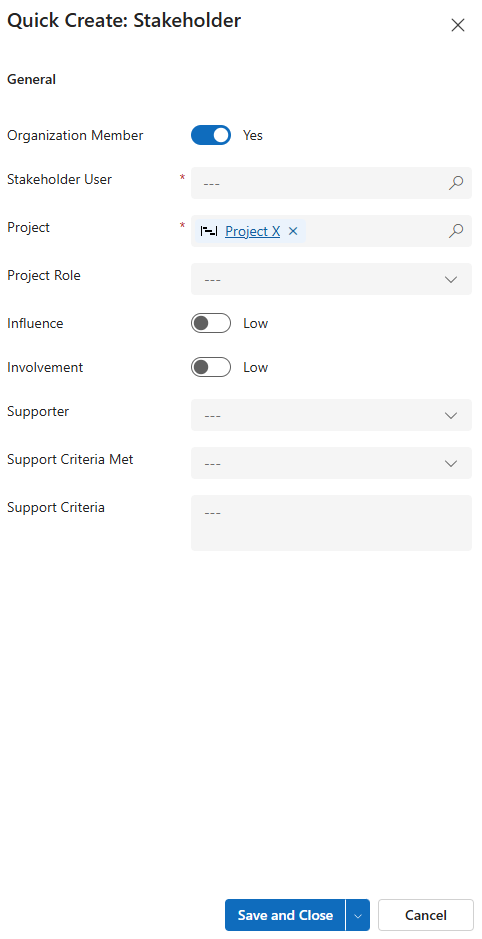
▪Fill out the form:
▶ To add a Stakeholder, the mandatory fields must be filled out. All mandatory fields are marked with a red star.
▪General:
▪Organization Member: Stakeholder is a member of the organization. Yes is selected by default.
➢Click on the slider to select No.
▪Stakeholder User:
➢Click on the input field, then press the Enter key and enter the desired Stakeholder User.
▪Project: The current project is selected by default.
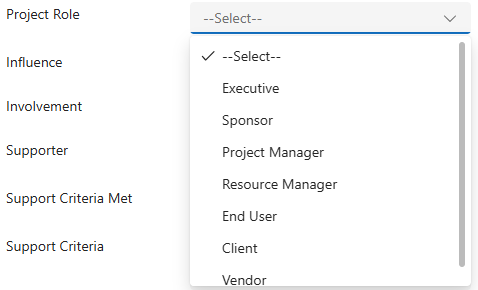
▪Project Role:
➢Click in the field and select the role from the drop-down menu.
▪Influence: Influence of the Stakeholder on the project. Low is selected by default..
➢Click on the slider to select High.
▪Involvement: Involvement of the Stakeholder in the project. Low is selected by default.
➢Click on the slider to select High.
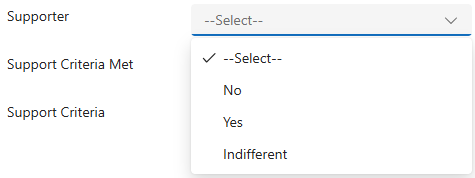
▪Supporter: Support of the Stakeholder in the project.
➢Click in the field and select the supporter from the drop-down menu.
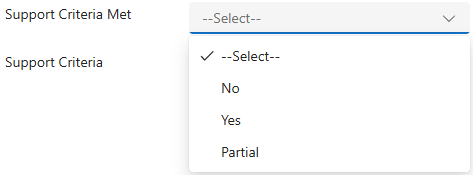
▪Support Criteria Met:
➢Click in the field and select an option from the drop-down menu..
▪Support Criteria:
➢Enter a meaningful description of the support criteria.
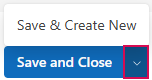
➢Click Save and Close.
Or
➢Click the down arrow and Save & Create New to add another Stakeholder.
▶ A Stakeholder is added.
▶ The stakeholder appears in the All Stakeholders table.