Create Inter-Project Links
|
Task planning in the Schedule > Inter-Project Links > Create Inter-Project Links |
You can create inter-project links on the Schedule tab as follows:
➢On the Schedule tab, select the task you want to link.
➢Right-click on the task. ▶ The drop-down menu opens.
➢Select Inter-Project Links and click on Edit. ▶ The Inter-Project Links overview opens.
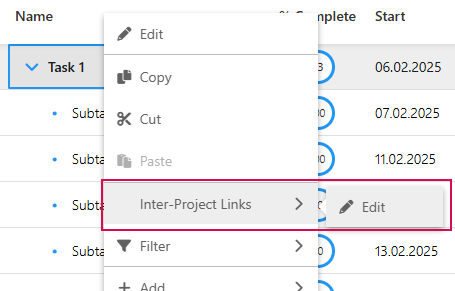
➢Click on Add.
▶ The Quick Create: Inter-Project Link form appears.
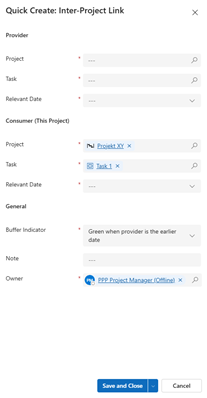
➢Complete the Quick Create: Inter-Project Link form.
| Provider = Project that provides information to the current project. |
➢Click in the Project field and select the provider project from the drop-down menu.
➢Click in the Task field and select the task from the provider project from the drop-down menu.
➢Click in the Relevant Date field and select Start or Finish from the drop-down menu.
| Consumer = Current project. Project that receives information from the provider project. |
▶ The Project and Task fields are filled in automatically.
➢Click in the Relevant Date field and select Start or Finish from the drop-down menu.
General
➢Click in the Buffer Indicator field and select from the drop-down menu how the buffer should be displayed in the Inter-Project Links overview.

➢Click in the Note field to enter a note for linking the tasks.
▶ The project manager of the consumer (current project) is automatically entered in the Owner field.
➢Click on Save and Close.
▶ The Inter-Project Link has been created.
▶ The Inter-Project Links are displayed in the Inter-Project Links overview.
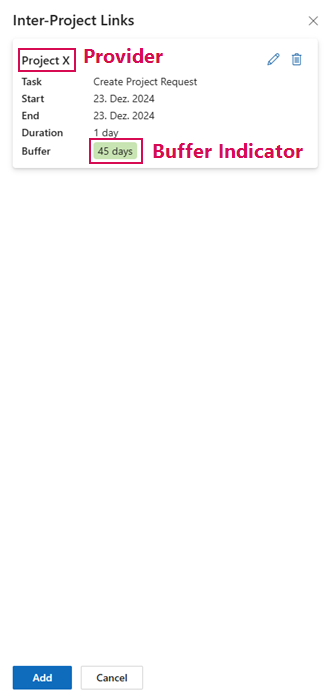
▶ The buffer is green if a buffer is available.
▶ The buffer is red if the buffer has been exceeded.