Schedule - Buttons
|
Task planning in the Schedule > Schedule - Views > Schedule - Buttons |
Above the tabular and graphical view of the tasks is a command line with buttons that you can use to customize the view.

▪Add (1): Add a new task.
▪Edit (2): Edit task.
▪Delete (3): Delete task.
▪Undo last action and Redo last undone action. (4) (see Undo and Redo Actions)
▪Outdent task or Indent task (5): Move task to another level.
▪Show all subtasks (6): All subtasks are displayed in the tabular and graphical view.
▪Hide all subtasks (7): All subtasks are hidden. Only the summary tasks and milestones are displayed in the tabular and graphical view.
▪Zoom out and Zoom in (8): Zoom in or zoom out view in Gantt Chart
▪Zoom to fit full Gantt (9): The entire project is displayed in the Gantt chart.
▪Scroll left and Scroll right (10): Jump in the Gantt chart to the start or end of the project.
▪Scroll to selected task (11): Selected task line is displayed.
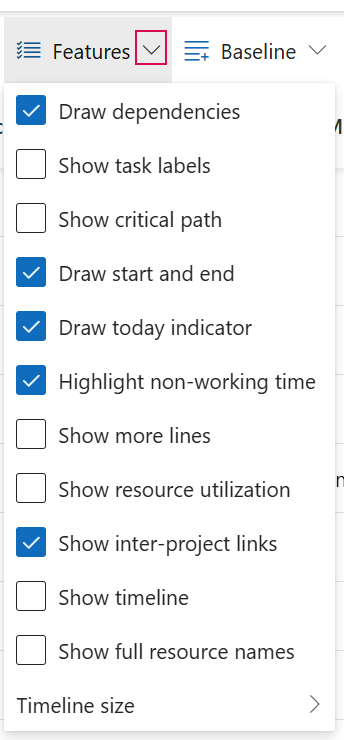
▪Features (12): Drop-down menu with features.
▪Click on the arrow. ▶ A drop-down menu opens.
▪Click on the elements to be displayed in the Schedule tab.
▪Baseline (13): Display baseline or save the current status as a baseline.
▪Click on the arrow. ▶ A drop-down menu opens.
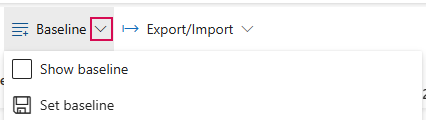
▪Click on Show baseline. ▶The baseline is displayed in the Gantt chart.
Or
▪Click on Baseline. ▶ The current status is saved as a baseline.
▪Export/Import (14): Export project, print as PDF or import from another project.
▪Click on the arrow. ▶ A drop-down menu opens.
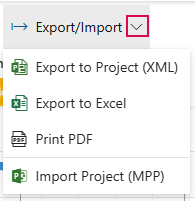
▪Select the desired action.
▪Refresh, full screen mode or reset view settings and immediate recalculation of the project. (15)