Board Tab
A Kanban board is integrated on the Board tab to display the tasks of a project. This Kanban board offers the option of dividing tasks into groups - the buckets - and organizing them.
By default, all tasks are in the bucket Backlog. You can add further buckets and move tasks into buckets.
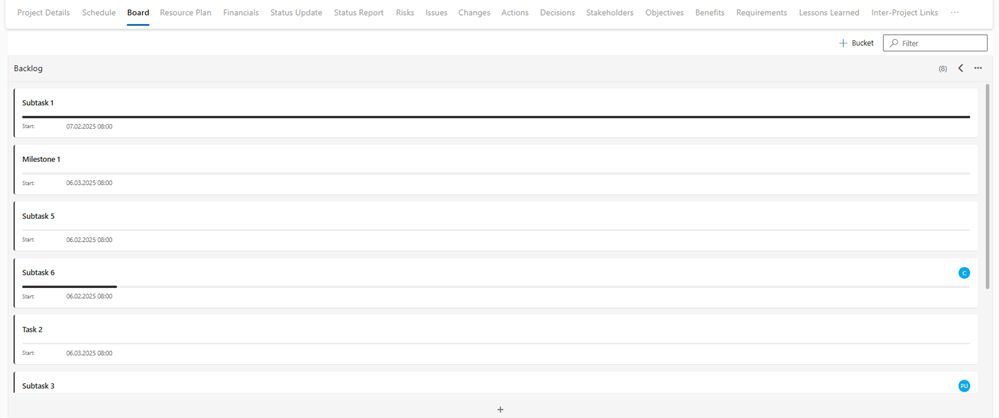
Create Bucket:
➢Go to the Board tab.
➢Click on Bucket.

➢Enter the name of the bucket. (e.g. in Progress)
➢Click on Add.
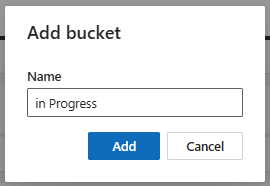
▶ A new bucket is created.
Move task to another bucket:
➢Select the task you want to move to another bucket.
➢Move the task using drag & drop.
Or
➢Right-click on the task. ▶ A drop-down menu opens.
➢Click Change column.
➢Click on the desired bucket (e.g. in Progress).
▶ The task is moved to the desired bucket.
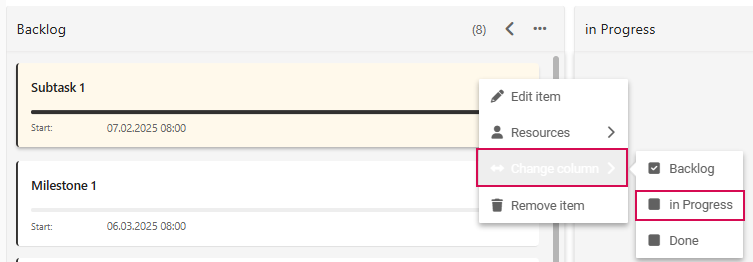
Further functions and editing options:
You will find further functions in the drop-down menu.
⚠ Warning: All functions affect the schedule. Deleting a task not only removes it from the bucket, but also from the schedule.
▪Edit item: Edit task.
▪Resources: Assign a resource to the task.
▪Remove item: Delete task.
You can customize the view in the Kanban board for greater clarity. You can find a detailed explanation in the section Actions - current Project.
Show bucket in the schedule:
You can show the Bucket column in the Schedule (see Task Attributes). The bucket to which the task is assigned is displayed there. You can select a different bucket and assign the task to a different bucket.
