Actions - organize across projects
|
Actions > Actions - organize across projects |
In this section, you will learn how to display and manage actions from multiple projects. This function allows you to obtain a comprehensive overview of all assigned actions and their states. Another Kanban board is integrated in PPP for this purpose, which displays actions across projects.
➢Click on Actions in the navigation bar. ▶ By default, all active action items are displayed on the Kanban board.
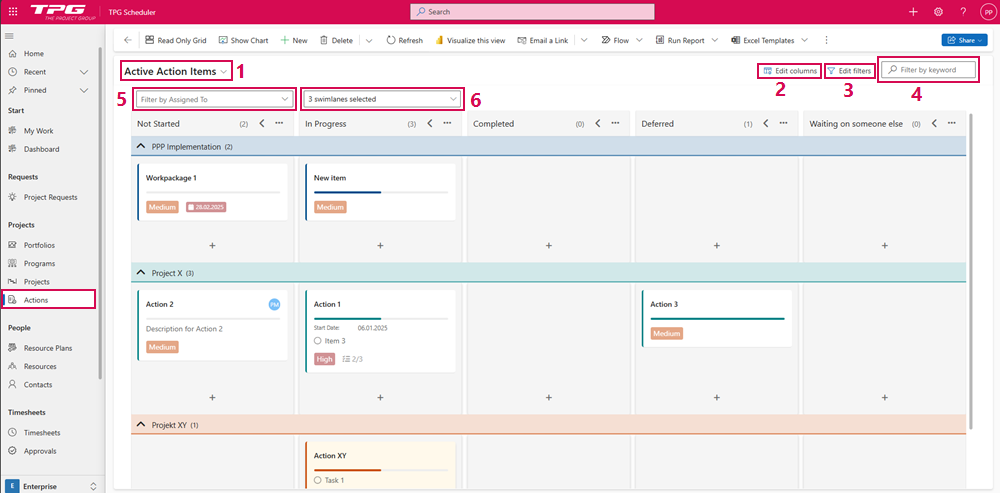
There are options available to you to customize the view:
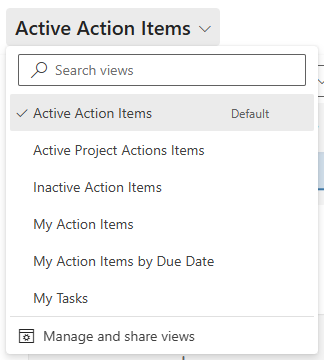
▪Selection menu of displayed Actions (1):
➢Click on the down arrow. ▶ A drop-down menu opens.
➢Click on the desired display option.
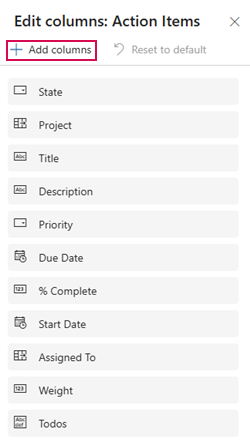
▪Edit columns (2): Add columns and change the order of the columns using drag & drop.
➢Click on Edit columns. (2) ▶ A form opens.
➢Click on Add columns and select the columns you want to add.
➢Click on the column you want to move and drag the column to the desired position while holding down the mouse button.
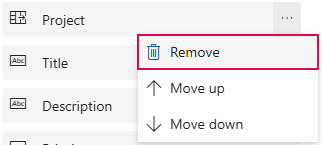
➢Click on the 3 dots in the column and select Remove from the drop-down menu to delete a column.
➢Click Reset to default to restore the default settings.
➢Click on Apply to apply the changes to the view.
▪Edit filters (3): Filter options for displayed action items.
➢Click on Add. ▶ A drop-down menu opens.
➢In the drop-down menu, select whether you want to add a row, a group or a related entity.
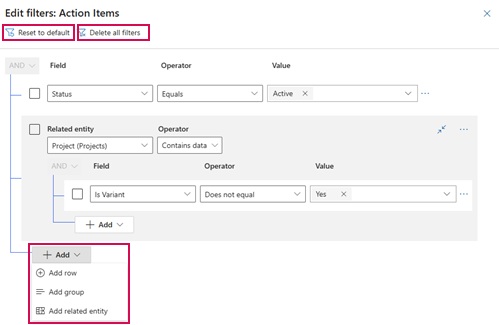
➢Set the attributes according to which the action items are to be filtered.
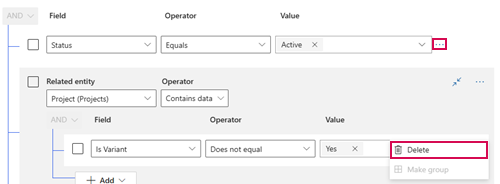
➢Click on the three dots next to the filter and click on Delete to delete a filter.
➢Click on Delete all filters to delete all filters.
➢Click Reset to default to restore the default settings.
➢Click on Apply. ▶ Only the action items to which the desired filters apply are displayed.
▪Filter by keyword (4):
➢Click on the Filter by keyword field.
➢Enter the keyword you want to filter by.
➢Click on the cross in the Filter by keyword field to delete the filter.
▶ The action items in which the keyword occurs are displayed.
▪Filter by Assigned To (5): Filter action items across projects according to the users to whom they are assigned.
➢Click on the Filter by Assigned To field. ▶ A drop-down menu opens.
➢Select the user whose assigned action items you want to display in the overview.
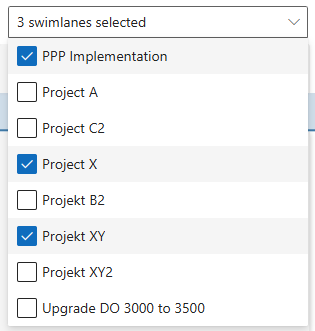
▪Swimlanes selected (6): Display action items of a project in rows (swimlanes) below each other on the Kanban board. (see Actions - show across projects)
➢Click on the swimlanes selected field. ▶ A drop-down menu opens.
➢Select the projects that you want to display on the Kanban board.