Add Risks
|
Risks > Add Risks |
To add a Risk, proceed as follows:
➢Click on New Risk. ▶ The Quick Create: Risk form for creating a risk opens.

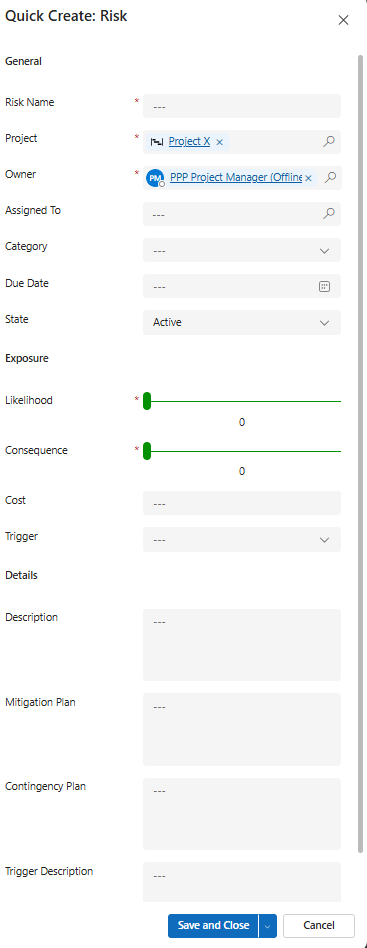
➢Fill out the form:
▶ To add a Risk, the mandatory fields must be filled out. All mandatory fields are marked with a red star.
▪General:
▪Risk Name: Enter a meaningful name for the Risk.
▪Project: The current project is selected by default.
▪Owner: Creator of the risk. The current user is entered by default.
▶ You can select a different project or owner by clicking on the search icon (magnifying glass) and selecting a different project or owner from the drop-down menu.
▪Assigned To: Stakeholder to whom the Risk is assigned.
➢Click in the input field, press the Enter key, and enter the desired stakeholder.
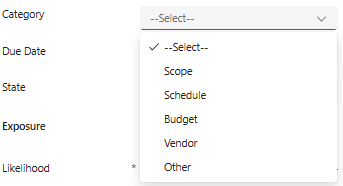
▪Category:
➢Click in the field and select the desired category from the drop-down menu.
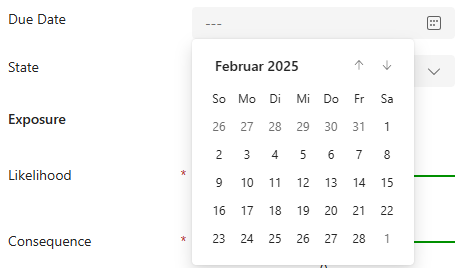
▪Due Date:
➢Click on the calendar icon and enter the due date.
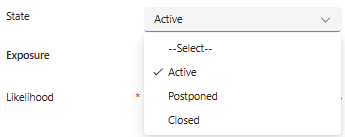
▪State:
➢Click in the field and select the desired status from the drop-down menu.
▪Exposure:
▪Likelihood: Probability that the Risk will occur.
➢Use the five-point slider (1 = minimum, 5 = maximum) to set the likelihood.
▪Consequence: Severity of the impact if the Risk occurs.
➢Use the five-point slider to determine the severity of the potential impact.
▪Cost: Enter an amount.
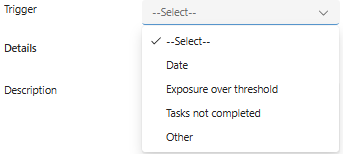
▪Trigger:
➢Click in the field and select the trigger from the drop-down menu.
▪Details:
▪Description, Mitigation Plan, Contingency Plan, Trigger Description:
➢Enter meaningful descriptions in the appropriate fields.
➢Click Save and Close.
Or
➢Click the down arrow and Save & Create New to add another Risk.

▶ A Risk is added.
▶ The Risk appears in the All Risks table.