Add tasks to Timesheets
There are three ways to add a task to Timesheets:
1.Insert a task using the Add tasks drop-down menu.
2.Create a new row in the table.
3.Insert existing tasks that are marked as favorites into the table.
Add tasks drop-down menu:
➢Click on Add tasks. ▶ The drop-down menu opens.
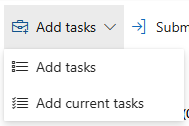
➢Click on Add tasks. ▶ All projects that contain tasks in the selected time period are displayed.
➢Select the task you want to add to the table by clicking on the checkbox.
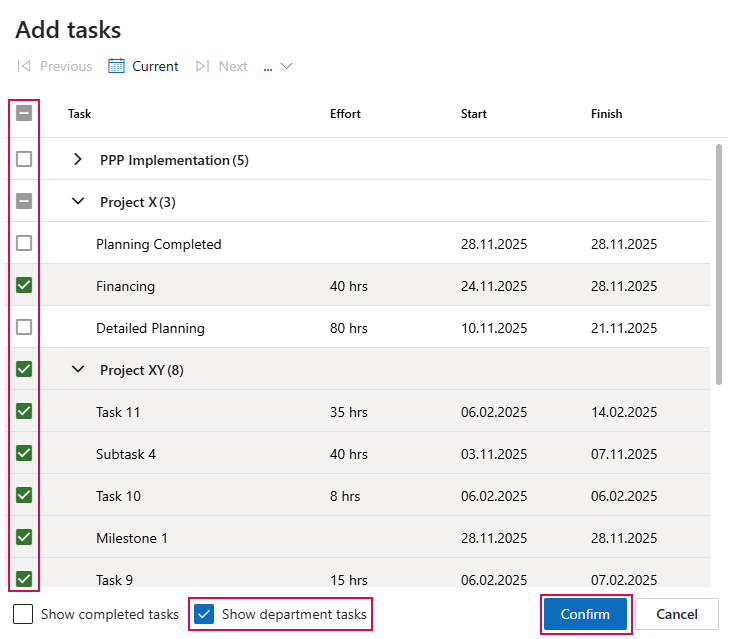
➢(Optional) Select the Show department tasks option to also select tasks that are assigned to generic resources in your department.
▶ Advantage: This allows you to record team- or department-related tasks, even if they are not specifically assigned to you. This means that team-related activities can be booked independently without having to duplicate or reschedule processes for individual persons. This speeds up time recording and facilitates collaboration on jointly responsible tasks.
▶ If the Show department tasks checkbox is not available or is not displayed, it must be activated by the administrator.
Or
➢Click on Add current tasks to insert all tasks that take place in the selected period.
➢Click on Confirm.
▶ The selected tasks are added to the Timesheets table.
Add a new row to the table:
➢Navigate to the week in which you want to add tasks. (1)
➢Click New. (2)
▶ A new row appears in the table.
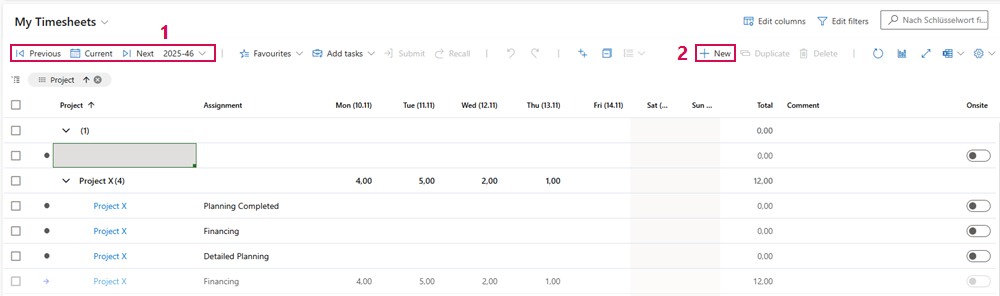
➢Click in the Project cell. ▶ A drop-down menu opens.
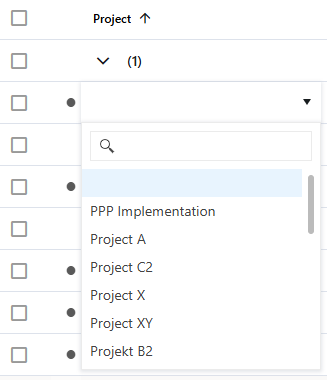
➢Select the desired project.
Use favourites:
Favourites allow you to transfer existing tasks to other weeks. The transfer can be done with or without recorded working hours.
Marking favourites:
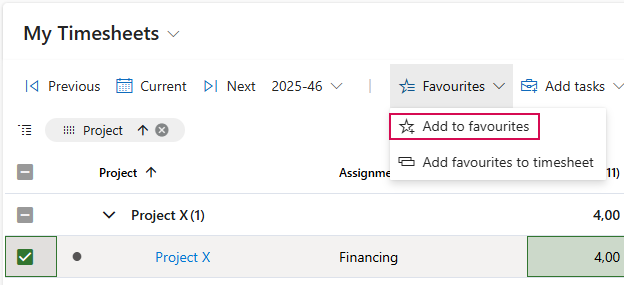
➢Check the box for the task you want to mark as a favourite.
➢Click on Favourites. ▶ The drop-down menu opens.
➢Select Add to favourites.
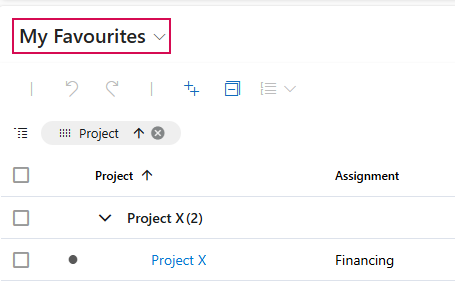
▶ The selected task will be displayed in the My Favourites view.
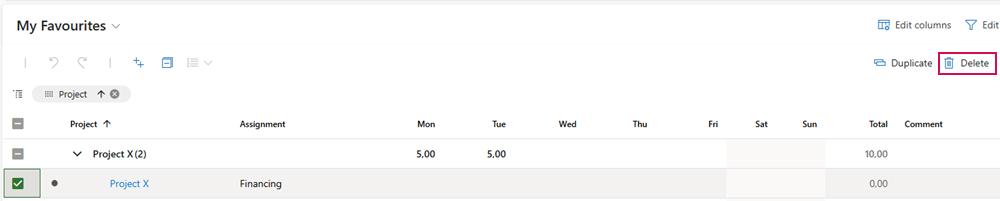
▶ If you no longer need a favorite, delete it from the My Favourites view.
Insert favourites:
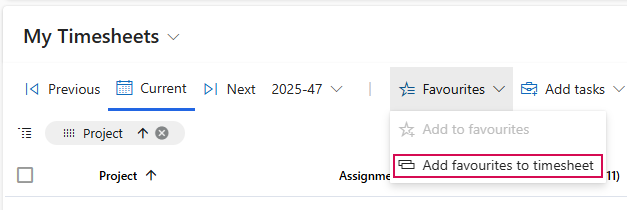
➢Navigate to the week in which you want to insert the favourites.
➢Click on Favourites.
➢Click on Add favourites to timesheet. ▶ A form will open.
➢Select the tasks you want to insert. (3)
➢Check the Include values checkbox to transfer the working hours of the task. (4)
➢Click Confirm. (5)
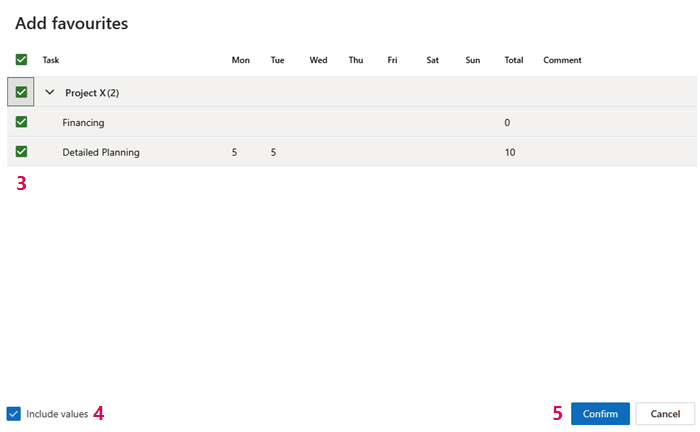
▶ The tasks are added to the desired week.