Set Calendar for a Task
|
Task planning in the Schedule > Task Attributes > Set Calendar for a Task |
To calculate the task data, TPG Scheduler uses the calendar that is set on the Project Details tab in the project master data. The “Default” calendar is set by default. (see Project Details General)
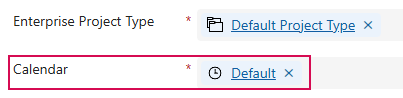
It is possible to use a different calendar for individual tasks.
▶ Calendars can be configured by an administrator in the Settings area.
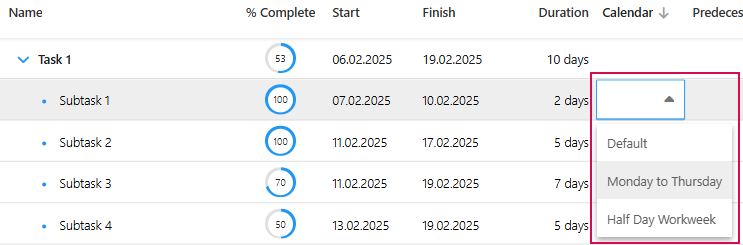
Set task calendar for individual tasks in the schedule:
➢Show the Calendar column. (see Schedule - Table)
➢In the task row, click on the cell in the Calendar column.
➢Click on the arrow on the right in the cell. ▶ The drop-down menu opens.
➢Click on the desired calendar.
▶ A task calendar for a single task is set.
Set task calendar for individual tasks in the information window:
➢Open the information window for the desired task. (see Define dependencies between Tasks - Information window)
➢Go to the Advanced tab.
➢Click on the arrow on the right of the Calendar field. ▶ The drop-down menu opens.
➢Click on the desired calendar.
➢Click Save.
▶ A task calendar for a single task is set.
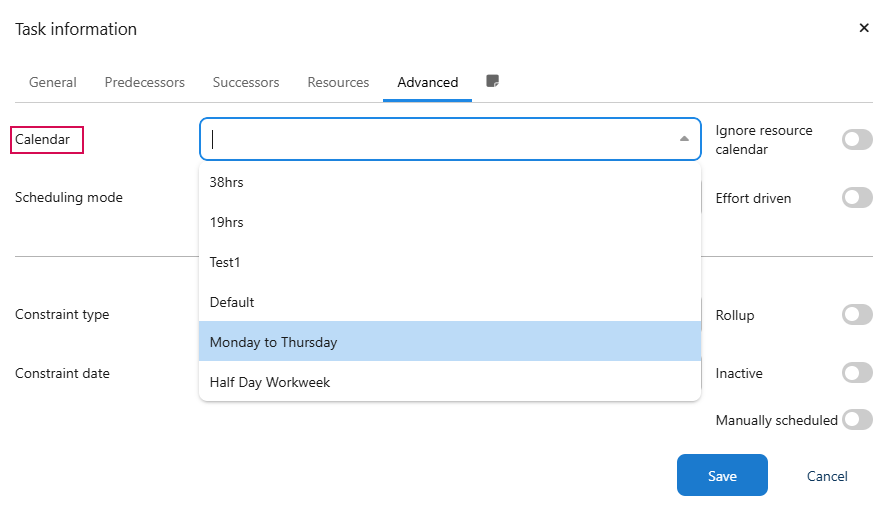
▶ If no calendar has been selected for a task, the calendar field in the task editor is blank by default. This makes it clear that no calendar is currently assigned.
▶ If a calendar is changed, the finish date of the task is adjusted. The nominal duration remains unchanged. The effort is calculated at 8 hours per day, regardless of the daily working hours defined in the calendar.