Actions - delete and move across projects
|
Actions > Actions - organize across projects > Actions - delete and move across projects |
In the Kanban board for cross-project actions, you can assign actions to a different state or project and delete actions.
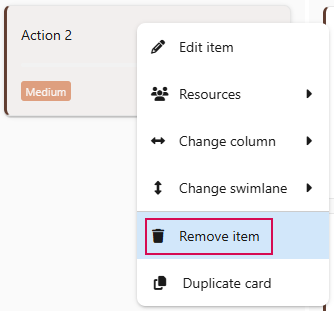
Delete action:
➢Select the action you want to delete.
➢Right-click on the action. ▶ A drop-down menu opens.
➢Click on Remove item.
Move actions:
There are several options for moving actions. The actions can be moved within a column and a swimlane or to other columns and swimlanes.
➢Select the actions you want to move.
➢Move the action to the desired column and swimlane using drag & drop.
Or
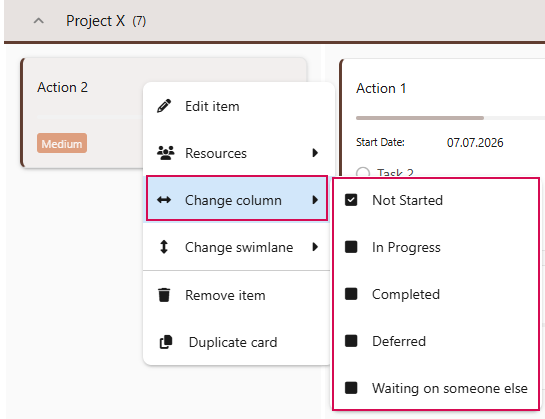
➢Right-click on the action. ▶ A drop-down menu opens.
➢Go to Change column.
➢Click on the desired column.
Or
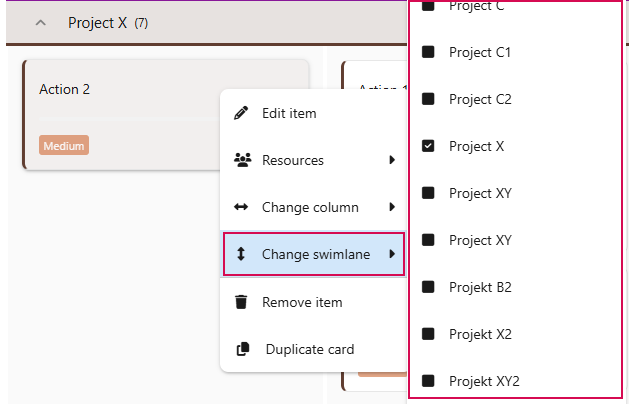
➢Right-click on the action. A drop-down menu opens.
➢Go to Change swimlane.
➢Click on the desired swimlane.
Moving Tasks with Linked Activities:
Tasks with a linked task cannot be moved to a different swimlane or project.
This applies to:
▪moving tasks via drag-and-drop,
▪changing the swimlane via the context menu.
If a move is not permitted, a corresponding warning message is displayed.

▶ If multiple tasks are moved at the same time and the selection includes at least one task with a linked activity, the entire move operation is canceled. All tasks remain in their original positions.
Additional Editing Options
Right-click on the task to access additional editing options in the drop-down menu:
▪Resources (1): Add resources to the task.
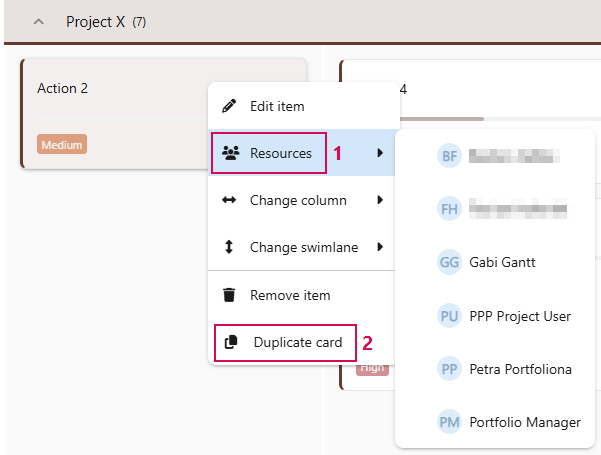
▪Duplicate Card (2): The task is duplicated.