Create Task
|
Task planning in the Schedule > Create Task |
The tasks for the project are created in the Schedule.
The following describes how to create new tasks, tasks on the same level, tasks above and below, subtasks and milestones.
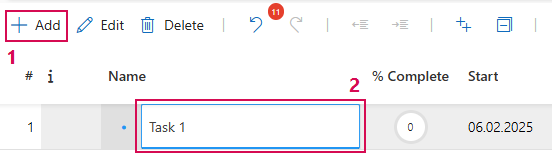
Create new task:
➢Click on the Add button. (1) ▶ A new task is created.
➢Enter the task name (2) and confirm with the Enter button.
Insert task on the same level:
Repeat the process described above to create a task on the same level.
➢Click on the Add button. ▶ A new task is created.
➢Enter the task name and confirm with the Enter key.
Add further tasks and milestones:
Further tasks and milestones are added via the drop-down menu:
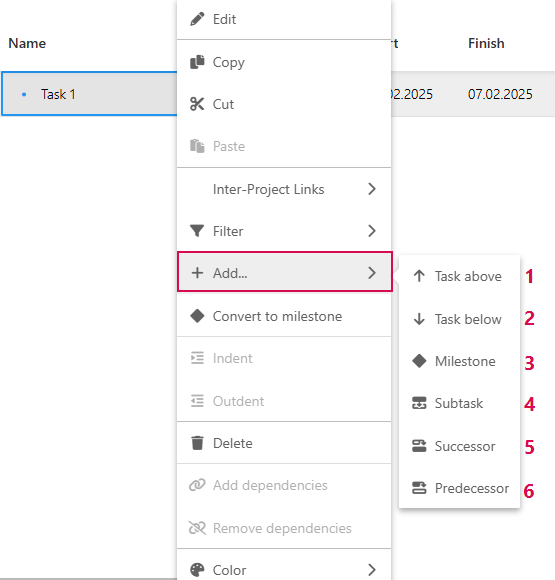
➢Right-click on a task. ▶ The drop-down menu opens.
➢Click on Add. You can create further tasks and milestones:
➢Click on Task above. (1) ▶ Task on the same level is inserted.
➢Click on Task below. (2) ▶ Task on the same level is inserted.
➢Click on Milestone. (3) ▶ Milestone is inserted at the same level.
➢Click on Subtask. (4) ▶ Task at next lower level is inserted.
➢Click on Successor. (5) ▶ Task that follows the current task is inserted.
➢Click on Predecessor. (6) ▶ Task that precedes the current task is inserted.
Copying, Cutting, and Pasting Cell Values:
The Scheduler supports copying, cutting, and pasting cell values. You can work with individual cells or multiple selected cells at the same time:
➢Click the cell whose contents you want to copy.
➢Click the fill handle (the blue square in the lower-right corner of the selected cell) and, while holding down the mouse button, drag it over the cells into which you want to copy the value.
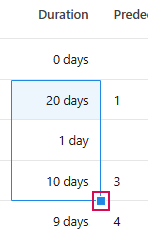
➢Release the mouse button to copy the contents of the selected cell into the highlighted cells.
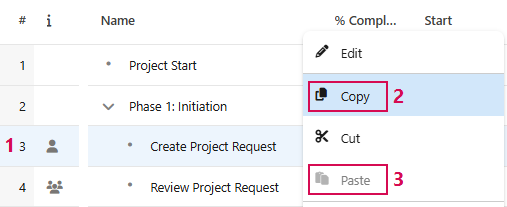
In addition, you can also copy and paste entire rows:
➢Click at the beginning of the row to select the desired row. (1) ▶ The selected row is highlighted in blue.
➢Right-click the selected row to open the drop-down menu.
➢Click Copy. (2) ▶ The row is copied to the clipboard.
➢Navigate to the desired location in the schedule and right-click to open the drop-down menu.
➢Click Paste. (3) ▶ The copied row is pasted at the selected location.