Progress Indicator
|
Task planning in the Schedule > Task Attributes > Progress Indicator |
Project progress shows you how much of your tasks, group tasks, or the entire project has already been completed. It is automatically calculated based on the progress information for the individual tasks and displayed as a progress bar in the project plan.

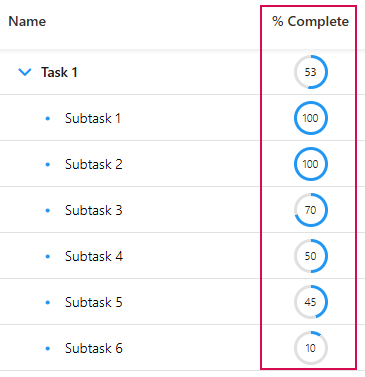
You can specify the percentage of completion for each task using the progress indicator. The progress indicator is found in the %Complete column. This column is displayed by default. The percentage entered is saved directly to the operation and serves as the basis for calculating the progress of higher-level collective operations.
➢Select the task to which you want to assign a progress.
➢Double-click the %Complete cell.
➢Enter the progress percentage in the field:
▪0%: Process has not yet begun
▪1–99%: Process in progress
▪100%: Process completed
▶ The percentage of progress will be displayed. This value serves as the basis for the calculation and display in the project plan.
▶ The progress indicator in the project plan displays the entered or calculated percentage directly on the task. The indicator itself does not perform any additional calculations.
Calculating Progress for Summary Tasks
For summary tasks, the percentage is calculated automatically. This involves aggregating the progress of the subordinate tasks - weighted by their duration. This means:
Tasks with longer durations have a greater impact on the overall progress than tasks with shorter durations.
Underlying formula (only active tasks with a duration are taken into account):

Example:
Summary task:
▪Task A: Progress 50%, Duration 4 days ▶ Included in the calculation.
▪Task B: Progress 100%, Duration 6 days ▶ Included in the calculation.
▪Milestone C: Progress 100%, Duration 0 days ▶ Not included in the calculation (no duration).
▪Task D (inactive): Progress 20%, Duration 5 days ▶ Not included in the calculation (inactive).
Calculation:
(50% × 4 days + 100% × 6 days) ÷ (4 days + 6 days) = 80%. ▶ The summary task is thus 80% complete.
Deviations in Practice:
In real-world projects, the displayed result may vary slightly, e.g., due to:
▪differing work calendars (e.g., weekends, holidays)
▪internal calculations using hours or milliseconds
▪rounding in the display
▶ Therefore, in practice, values such as 83% or similar may be displayed.
▶ Only active tasks are included in the automatic calculation.
▶ Inactive tasks are not included in the progress calculation.
▶ Milestones have a duration of 0 days and therefore do not affect the calculation.
▶ If there are multiple levels, progress is automatically calculated across all subordinate levels.
Recalculate total project progress:
Use this function when the progress values, duration, status, or activity of tasks have changed and you want to update the overall progress.
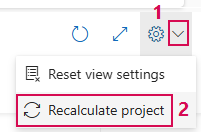
➢Click on the down arrow on the right-hand side of the screen. (1) ▶ The drop-down menu opens.
➢Click on Recalculate project. (2)
▶ The total project progress is recalculated.
▶ The newly calculated project progress takes into account only active tasks with a duration. Inactive tasks and milestones without a duration do not affect the progress value.
Visual Highlighting of Delayed Tasks and Milestones:
This feature allows you to highlight delayed tasks and milestones in the scheduler.
A task is considered delayed if:
▪the scheduled end date is in the past,
▪the task is not yet 100% complete,
▪the task is active (not marked as inactive).
Delayed tasks are highlighted in color:
▪in the table by a changed background color for the row,
▪in the Gantt chart by a changed color for the task bar.
Delayed milestones are also highlighted in color.
▶ The administrator can enable or disable this feature in the scheduler settings.
▶ The highlight color is set by the administrator. A predefined color is set by default.