Add Decisions
To add a Decision, proceed as follows:
➢Click on New Decision. ▶ The Quick Create: Decision form for creating a Decision opens.

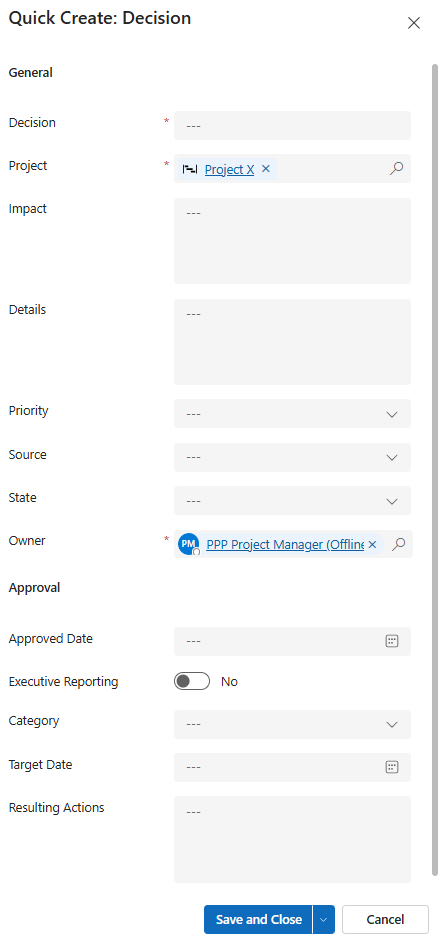
▪Fill out the form:
▶ To add a Decision, the mandatory fields must be filled out. All mandatory fields are marked with a red star.
▪General:
▪Decision: Enter a meaningful name for the Decision.
▪Project: The current project is selected by default.
▪Impact, Details:
➢Enter a meaningful description of the impact and details of the Decision.
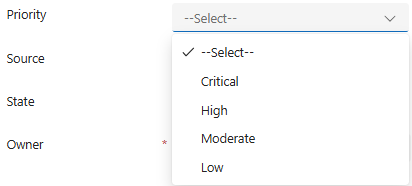
▪Priority:
➢Click in the field and select the priority from the drop-down menu.
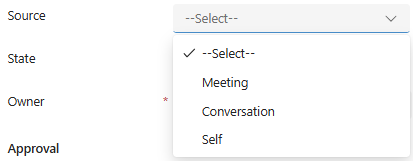
▪Source:
➢Click in the field and select the source from the drop-down menu.
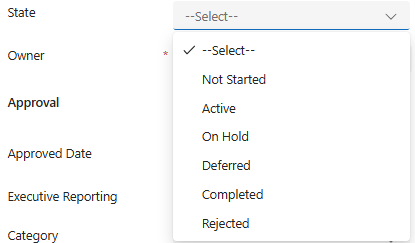
▪State:
➢Click in the field and select the status from the drop-down menu.
▪Owner: Creator of the Decision. By default, the current user is entered.
▶ You can select a different project and owner by clicking on the search icon (magnifying glass) and selecting a different project or owner from the drop-down menu.
▪Approval:
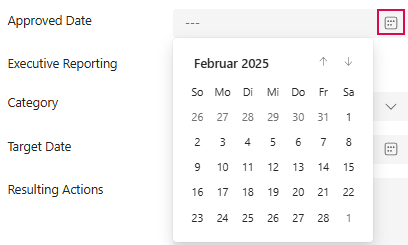
▪Approved Date:
➢Click on the calendar icon and enter the approved date.
▪Executive Reporting: Create a report for management. No is selected by default..
➢Click on the slider to select Yes.
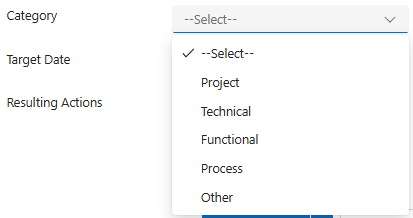
▪Category:
➢Click in the field and select the category from the drop-down menu.
▪Target Date:
➢Click on the calendar icon and enter the target date.
▪Resulting Actions:
➢Enter a meaningful description of the resulting action.
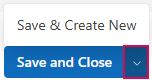
➢Click Save and Close.
Or
➢Click the down arrow and Save & Create New to add another Decision.
▶ A Decision has been added.
▶ The Decision appears in the Active Decisions table.