Add Lessons Learned
To add Lessons Learned, proceed as follows:
➢Click on New Lesson Learned. ▶ The Quick Create: Lesson Learned form for creating a Lesson Learned opens.

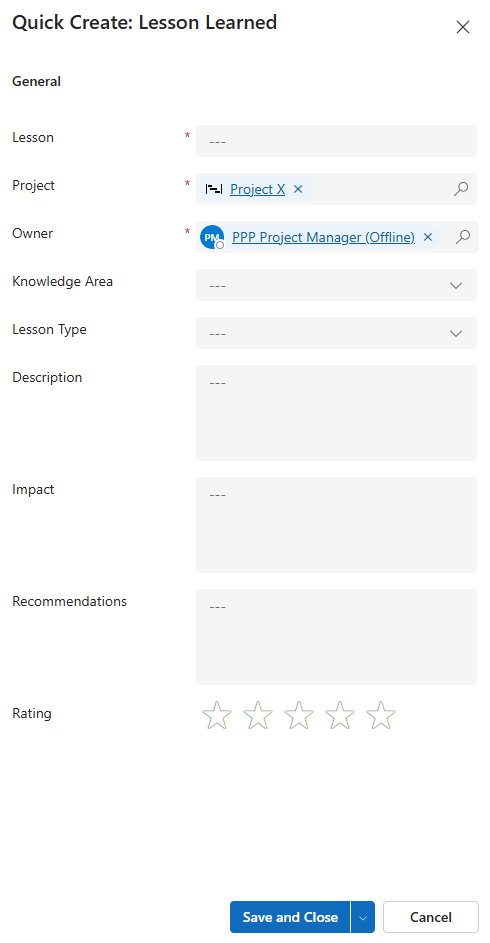
▪Fill out the form:
▶ To add a Lesson Learned, the mandatory fields must be filled out. All mandatory fields are marked with a red star.
▪General:
▪Lesson: Enter a meaningful name for the Lesson Learned.
▪Project: The current project is selected by default.
▪Owner: Creator of the Lesson Learned. The current user is entered by default.
▶ You can select a different project and owner by clicking on the search icon (magnifying glass) and selecting a different project or owner from the drop-down menu.
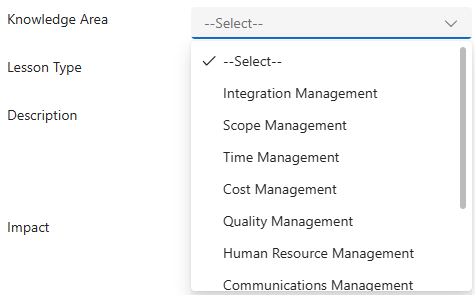
▪Knowledge Area:
➢Click in the field and select the knowledge area from the drop-down menu.
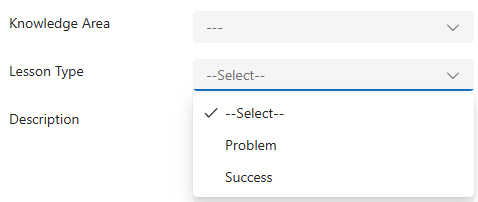
▪Lesson Type:
➢Click in the field and select the type of Lesson Learned from the drop-down menu.
▪Description, Impact, Recommendations::
➢Enter a description, impact, and recommendation. The descriptions should be as meaningful as possible.
▪Rating:
➢Give your rating by selecting 1 (minimum) to 5 stars (maximum).
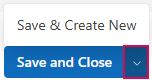
➢Click Save and Close.
Or
➢Click the down arrow and Save & Create New to add another Lesson Learned.
▶ A Lesson Learned is added.
▶ The Lesson Learned appears in the Active Lessons Learned table.