Adjust Table
For better clarity, you have the option to customize the table. Depending on the column, various options are available to you:
➢Go to the table header.
➢Click the down arrow to the right of the column header. ▶ A dropdown menu opens.
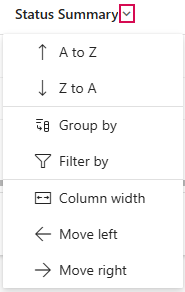
➢Select the desired option:
▪Sort: Older to newer/Newer to older (Date) or A to Z or Z to A.
▪Group by: Group status updates by column header (e.g., Status Summary).
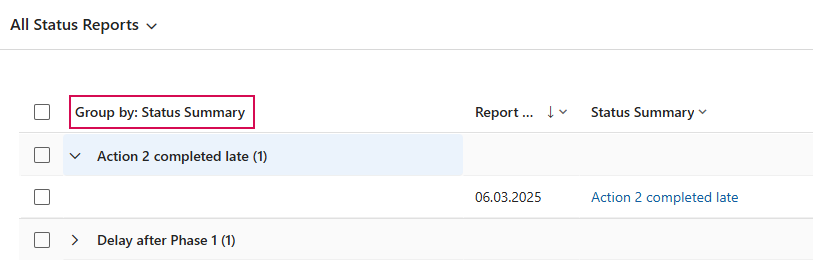
▪Ungroup: Remove the selected grouping.
▪Filter by: Select various filter options (e.g., Equals) to display only certain status reports.
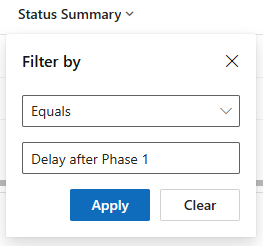
▶ In this example, only status reports whose status summary exactly matches the entered text "Delay after Phase 1" are displayed.
▪Clear filter: Remove applied filters.
▪Column width: Adjust the column width.
▪Move left: Move the column one position to the left.
▪Move right: Move the column one position to the right.
Refresh table:
➢Click Refresh to update the table.
