Use Multi-year view in Resource Plan
The Multi-year view in the resource plan displays all resource lines over several years. This makes resource planning beyond the turn of the year easier to recognize.
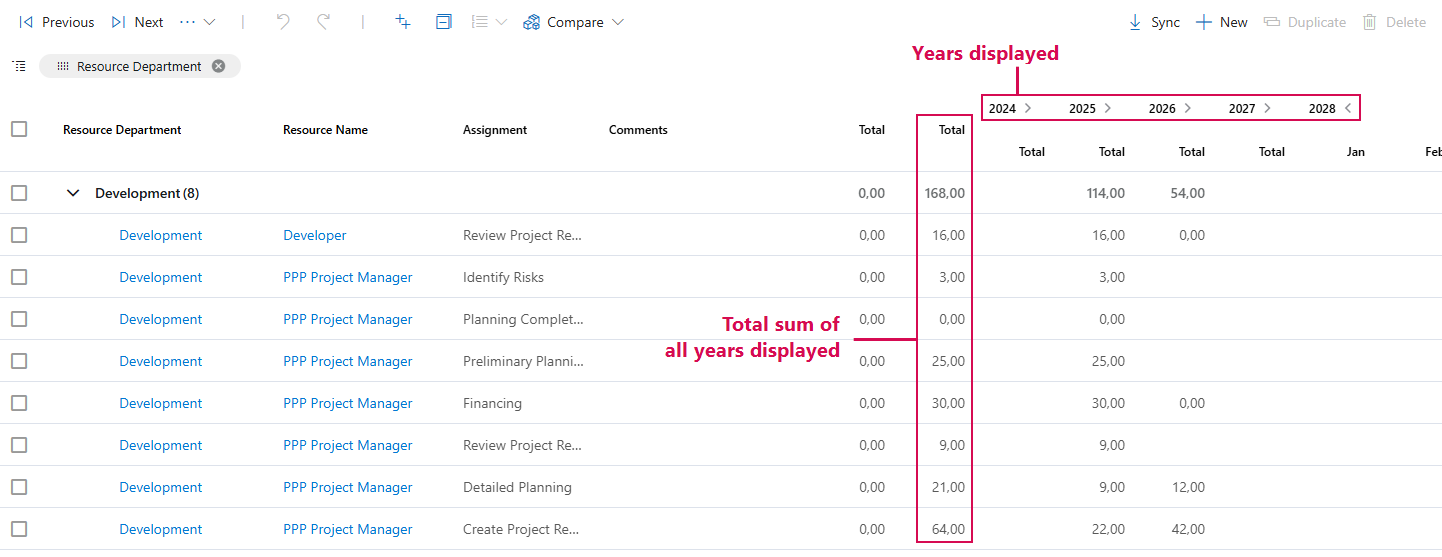
▶ If the Multi-year view is not available, it must be activated by an administrator. In this case, contact your administrator.
▶ The number of years displayed can be changed by the administrator.
▶ The creation of the resource plan is described in detail in the section Resource Plan Tab - Create Resource Plan manually.
Navigating between years:
➢Click Previous to switch to the display of previous years.
➢Click Next to switch to the display of subsequent years.
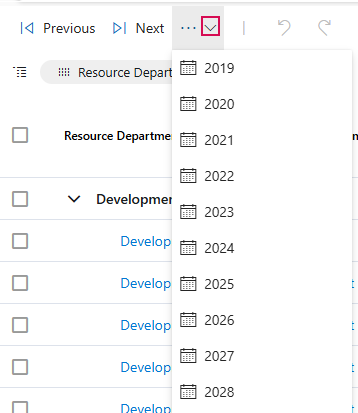
➢Click the down arrow to select a specific year from the drop-down menu.
▶ The view will jump to the corresponding year.
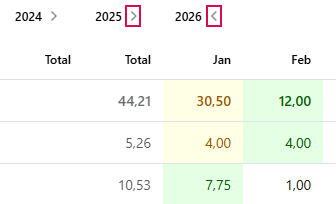
Expand or Collapse Years
➢Click the icon (arrow pointing right or left) to expand or collapse a year.
➢Collapse years you do not need in order to reduce the view.
➢Expand additional years to display more time periods.
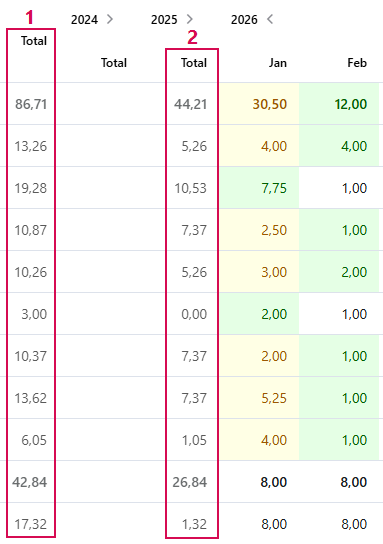
Total amount over several years:
The software automatically calculates the total number of working hours across all currently visible years. This total is displayed in the Total column (1).
Total per calendar year:
The software also determines the total number of working hours within a single calendar year. The annual total - for example, for the year 2025 - appears in the Total column (2).