Actions - current Project
|
Actions > Actions - current Project |
On the Actions tab, you can create, edit and organize actions for the current project in a Kanban view.
Open the project in which you want to create actions:
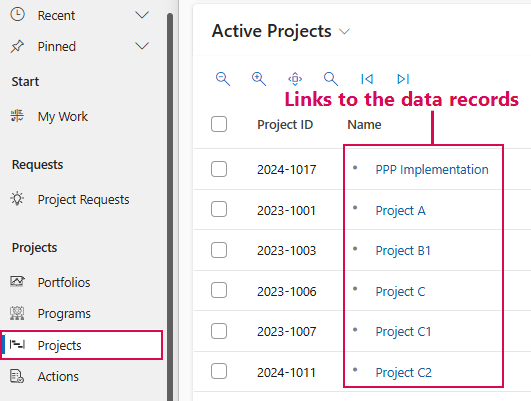
➢Click Projects in the navigation bar. ▶ A list of all active projects will open.
➢Select the desired project from the list and click the link to the record. ▶ The project will open.
➢Click the Actions tab. ▶ The Kanban board appears.
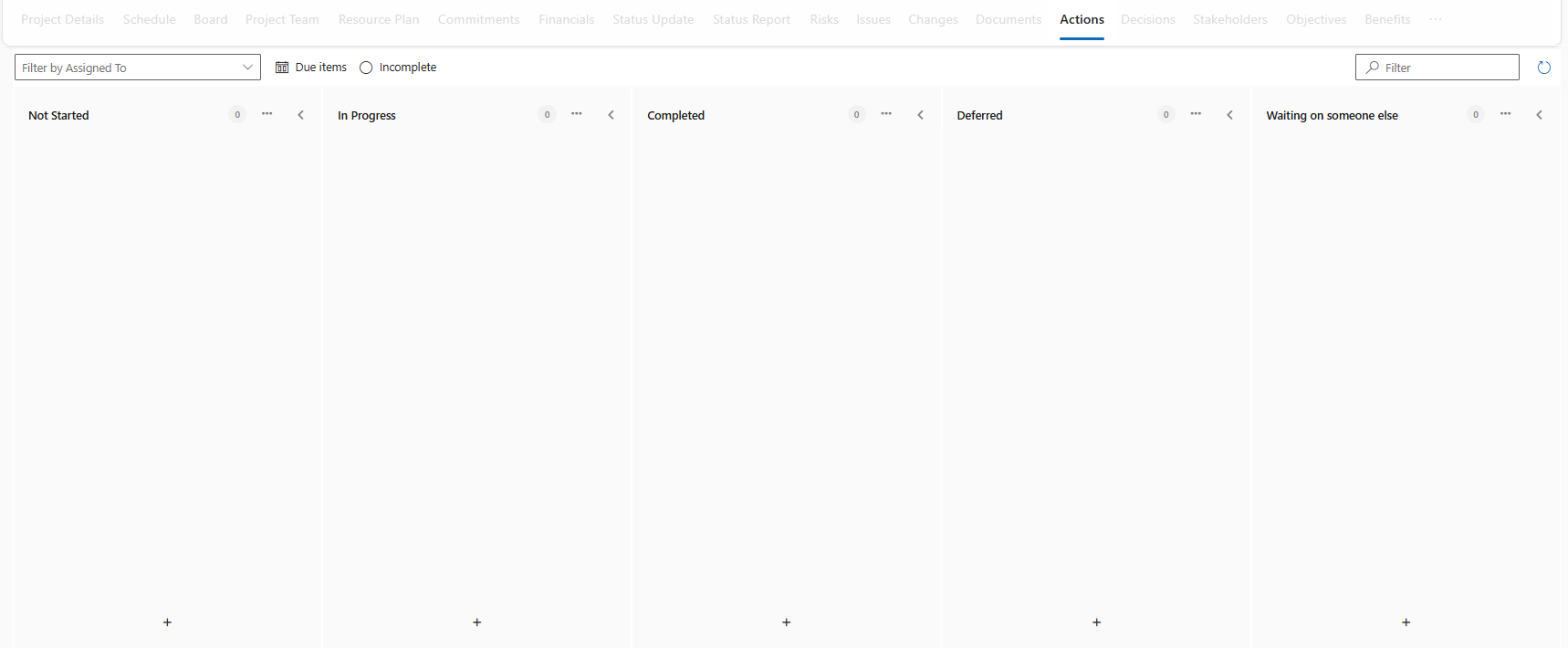
The actions are grouped by state in columns. There are the following states:
▪Not Started: The action has not yet been started.
▪In Progress: The action is being processed.
▪Completed: The action has been completed.
▪Deferred: The action is on hold.
▪Waiting on someone else: The action must be processed by someone.
The following filter options are available:
▪Filter tasks by assigned persons. (1)
▪Due items: Only tasks that are overdue are displayed. (2)
▪Incomplete: Only tasks that are incomplete are displayed. (3)

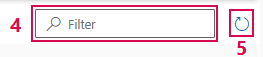
▪Filter tasks by name and/or content. (4)
▪Refresh: The Kanban board is refreshed. (5)
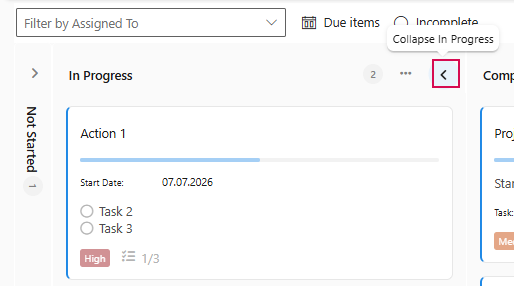
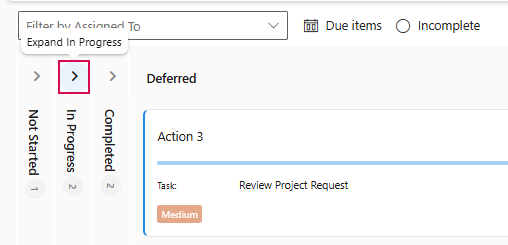
For better clarity, you can collapse or expand the columns:
➢Select the column you want to collapse or expand.
➢Click the arrow pointing left or right in the state column.
▶ The column will be collapsed or expanded.
▶ The Actions can be assigned to tasks in the TPG Scheduler (Schedule tab). How to show columns is described under Task Attributes.
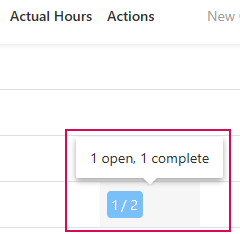
▶ The Schedule shows how many actions are assigned to the task and whether these actions are open or completed.
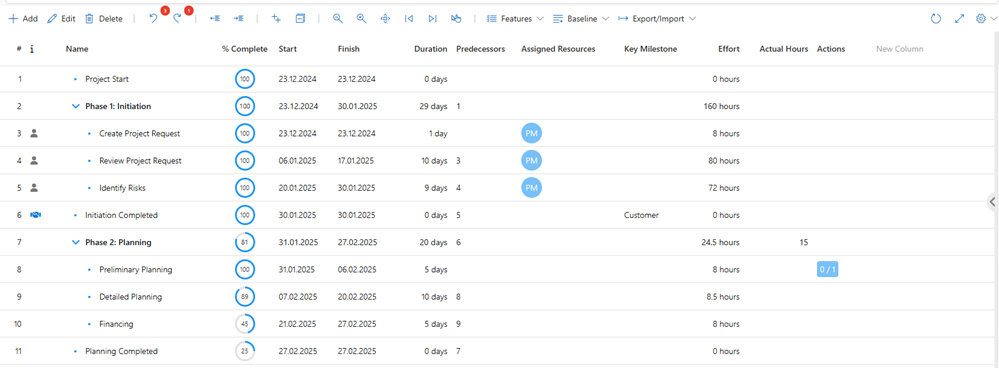
Example: 2 actions are assigned to a task. One of these actions has already been completed and one is open.