Edit Inter-Project Links
|
Task planning in the Schedule > Inter-Project Links > Edit Inter-Project Links |
In TPG Scheduler, you can edit inter-project links on the Schedule tab as follows:
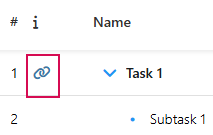
On the Schedule tab, a link icon in the indicator column shows when a task is linked to tasks in other projects.
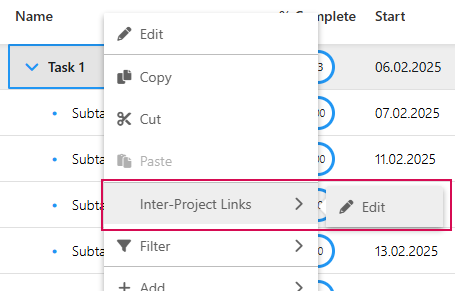
➢Right-click on the task. ▶ The drop-down menu opens.
➢Go to Inter-Project Links and click on Edit.
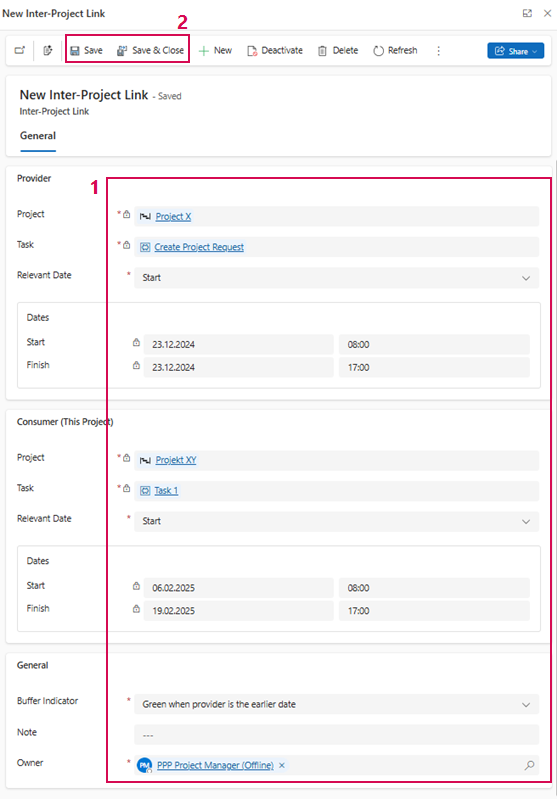
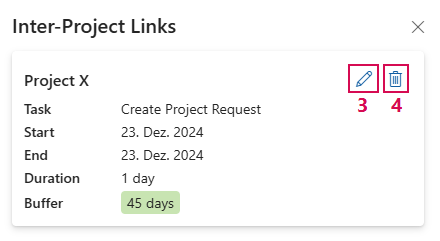
➢Click on the edit icon. (3) ▶ A form opens.
➢Click in the field you want to edit to edit the form. (1)
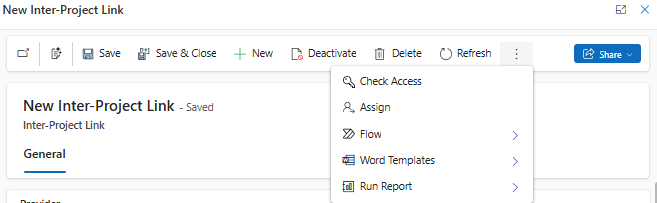
▶ The command bar of the form contains buttons to deactivate the links or share them with others.
➢Click on Save or Save & Close. (2)
➢Close the Inter-Project Links window.
Delete links:
➢Click on the delete icon. (4) ▶ A confirmation prompt appears.
➢Click on Delete.
Jump to the linked task of the other project in the Gantt chart:
➢Activate Show Inter-Project Links in the Gantt chart. (see Schedule - Buttons)
➢Right-click on the task.
➢Go to Inter-Project Links, Scroll to and click on the task (e.g. Create Project Request).
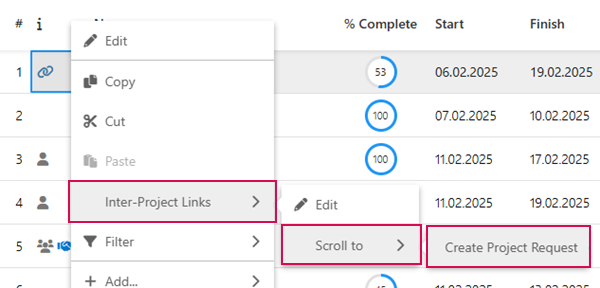
▶ The linked task is highlighted in the Gantt chart.
▶ Inter-Project Links can only be edited or deleted in the project in which they were created.