Adding absences
To get realistic capacity values for your team, you can add multiple categories of absences.
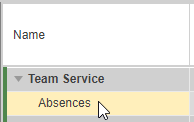
▪Select Absences below the team name.
For a better overview, you can hide the other rows at team level.
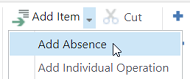
▪In the Edit group of the menu bar, click the arrow next to Add Item and select Add Absence.
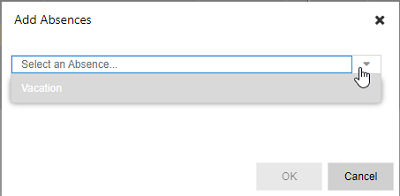
▪Select one or more absence names from the drop-down menu.
Alternatively, type the beginning of an absence name and select from the filtered options.
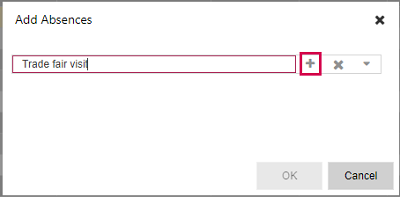
▪If you type an absence name that does not yet exist, a plus icon appears. To add and select the new absence category, click the plus icon.
The new category will be available only for your team.
▪Click OK.
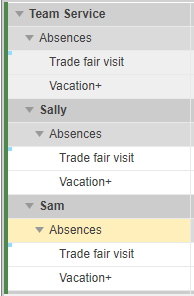
The absence rows will be automatically added also to the individual resources.
Team specific absence categories are marked with a blue square in the top left corner.
▪Enter the time-phased data either individually for each resource in the main table or for several resources simultaneously in the details table (see Entering time-phased data).