Committing personal resources
|
Planning Procedure > Committing projects > Committing personal resources |
Commitments for individual resources can be made in the main table or in the details table.
➤ In the main table, you see the remaining availability of each resource in the respective name row. This helps avoiding a work overload.
The details table provides a compact overview of requests for the resources assigned to the selected project.
▪In the main table, go to a resource and expand a project.
▪Alternatively, select a project in the main table and select Details in the Views group of the menu bar.
▪Expand one of the resources shown in the details table.
▪Enter the work that you provide for the project in the Commitments row of the resource.
You can enter the numbers manually or copy a selected cell (Ctrl + C) and paste it in the Commitments row (Ctrl + V).
Colors in the parent row will show how far the request is fulfilled:

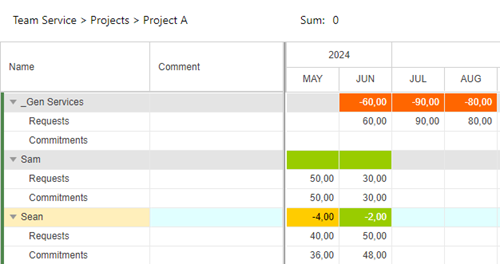
The example below shows part of the details table for Project A.
–June, July and August of the generic resource are red because no commitments have been made.
–May and June of Sam are green because the requests have been fulfilled at 100%.
–May of Sean is yellow because the commitment is 4 hours (>10%) less than requested.
–June of Sean is green because the missing 2 hours (< 10%) are in the range of the threshold for the green indicator.
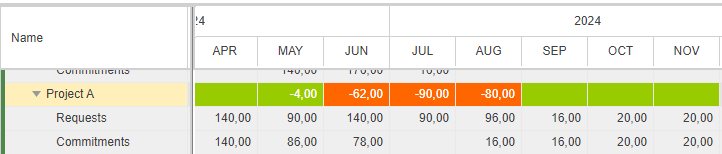
In the main table, the row of a project will be marked green when all resource requests for the project are fulfilled at more than 90% .
When the commitments are made for the personal resources in the example above, the project row will look like this: