Highlighting time-phased data
For multiple purposes, it may be helpful to highlight the cells of specific time phases. For example, you can highlight cells when data are missing or need to be checked later. Highlighting cells is possible in the Requests and Commitments rows either on the individual resource level or in the details table. The cells will be highlighted with a color frame.
▪In the main table, go to a resource and expand a project.
▪Alternatively, select a project in the main table and select Details in the Views group of the menu bar.
▪Expand one of the resources shown in the details table.
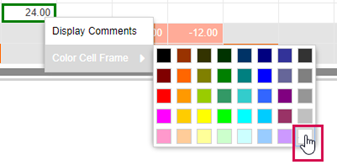
▪Right-click in the cell you want to highlight.
▪Go to Color Cell Frame and select a color.
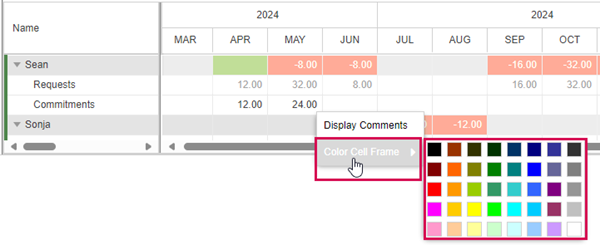

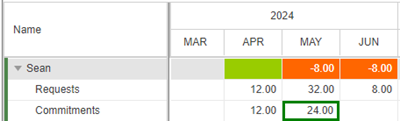
▪If you want to remove the color frame, select the white tile in the color palette.
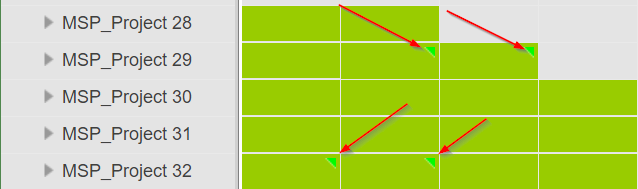
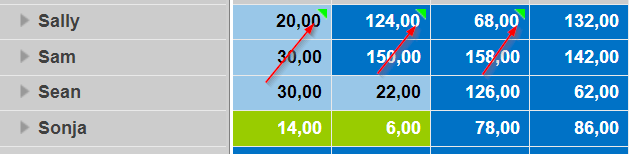
▪Highlighted cells will be Rolled up to higher levels, so that you can see on Resource or Project level are Details which are possibly collapsed shown as a green triangle.