Importing projects
After entering the absences and line operations of the resources, the next step is to import the projects with assignments using your team resources.
▪In the Import group of the menu bar, click Projects.
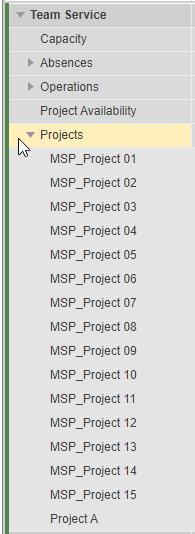
All projects that have assignment requests for your team will appear at the team level of your plan.
If you have opened a parent team with sub-teams, the projects that have assignment requests for only the sub-teams will appear in addition. These projects will be read-only.

At the individual resource level, the assigned projects are listed as well.
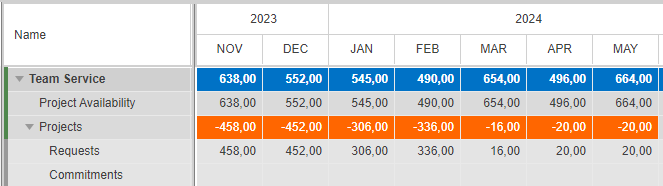
The requested plan values from the projects are shown in the Request row. If the row is not shown, select Request in the Show group of the menu bar.

As the values in the Request row are not yet committed, they are not included in the calculation of the resource utilization.
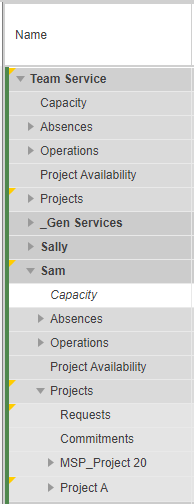
If changes are made in the source projects and you import projects later again, all affected rows will be marked with a yellow triangle.
In the example below, the project manager of Project A has changed work data for Sam: