Removing or replacing resources
|
Planning Procedure > Resources > Removing or replacing resources |
Members of the project team can be removed or replaced.
If you remove a resource that has tasks assigned, their assignments and values will be deleted.
If you replace a resource that has tasks assigned, their assignments and values will be transferred to the new resource.
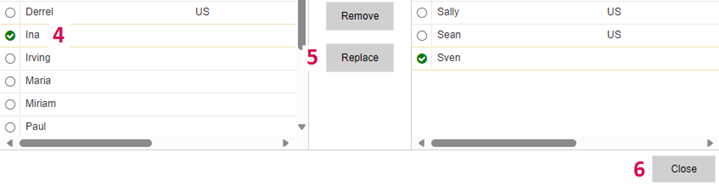
▪To remove or replace a resource of your project, select the project summary task and click Project Team in the Project group of the menu bar.
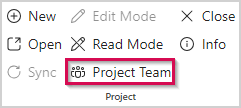
The members of the project team are shown in the right part of the window. Resources with assignments are marked by a green border.
▪Use the checkboxes in the upper part to define the resource types to be shown (1).
▪In the right part of the window, select the resource you want to remove or replace (2).
To filter for specific resources, enter their name or properties in the respective search field above the list.
If you want to remove resources without replacing them, you can select multiple resources.
▪To remove the selected resource(s) without replacing them, click Remove (3).
If you are about to remove a resource with assignments, you will be asked if you want to continue. Click Yes.
The selected resource(s) will be moved back to the resource pool and are no longer part of the project team.
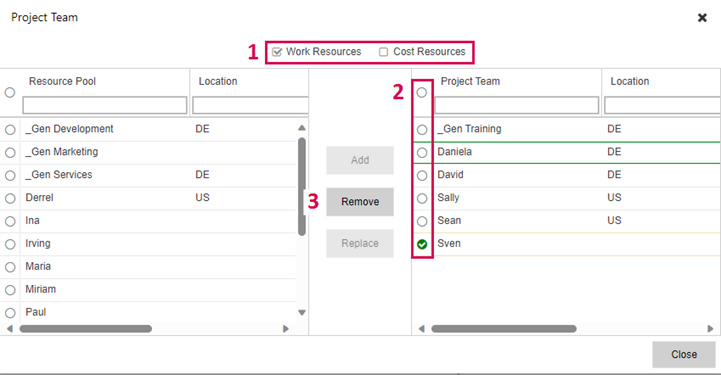
▪To replace the selected resource, select a new one from the resource pool on the left (4) and click Replace (5).
If you are about to replace a resource with assignments, you will be asked if you want to continue. Click Yes.
The resource selected on the right will be replaced by the new one and is no longer part of the project team.
▪Click Close (6).