Entering time-phased data
All time-phased data are entered in the white lines either on the individual resource level or – for several resources simultaneously – in the details table.
Rows with a gray background contain automatically transferred or calculated values. As the aggregation of values at team level is automatic, the rows at this level are gray.
➤ You can enter time-phased data after a single or double click in a cell.
Entering data on the individual resource level
▪Expand a resource field (here: Sally) and go to to the row of the item for which you want to allocate time (here: Absences > Vacation).
▪Insert the number of hours in the respective cells of the timeline.
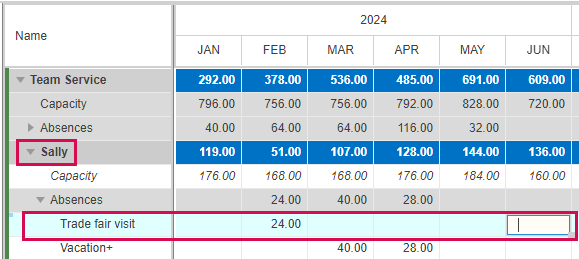
For periodic activities, you can enter the same value for many subsequent time phases by drag and drop:
▪Enter the value in the first cell of the period and drag the bottom right corner of the cell to the right.



Entering data in the details table
▪At the team level, expand the item for which you want to allocate time and select a category (here: Absences > Vacation).
▪Select Details in the Views group of the menu bar.
The respective rows of the team members will be shown in the details table.
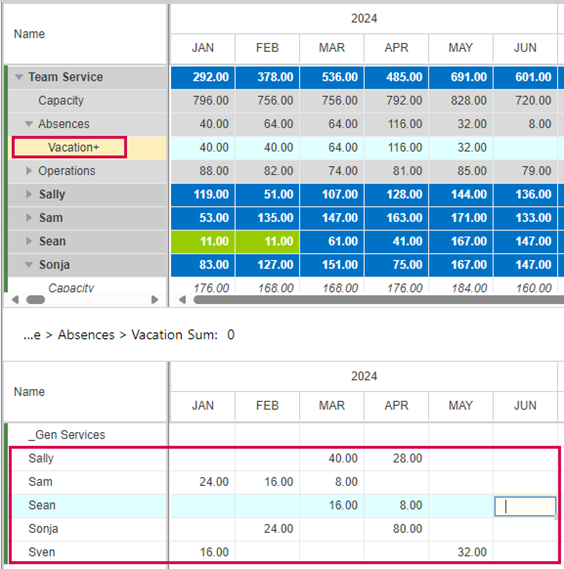
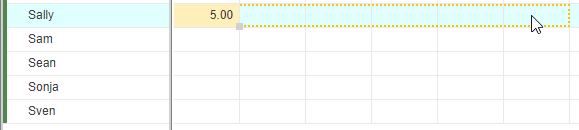
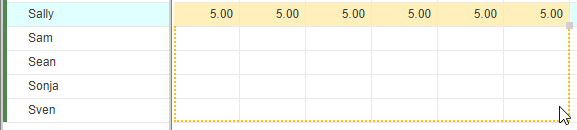
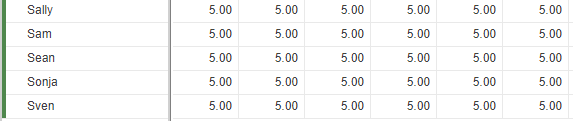
In the details table, you can enter the same value for many subsequent time phases and/or several resources by drag and drop:
▪Enter the value in the first cell.
▪Drag the bottom right corner of the cell vertically or horizontally to copy the values. Drop the corner and then drag it to the other direction.