Custom Fields

Custom fields can be defined for portfolios, projects, tasks, resources and assignments.
➤ If you want to add a custom field with drop-down selection, first make sure an appropriate lookup table exists. Once the custom field is created and saved, it cannot be linked to a lookup table.
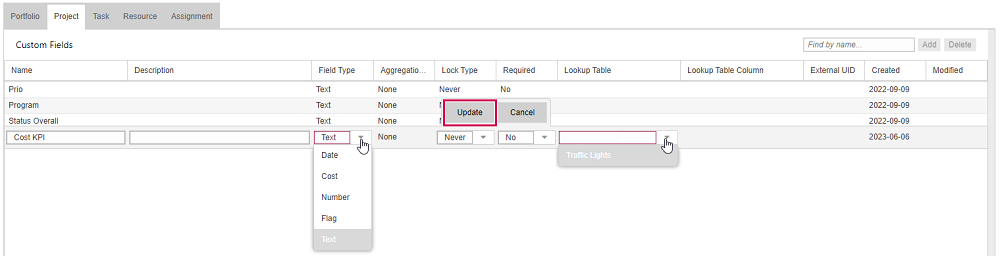
▪ To add a custom field, open the corresponding tab and click Add on the right above the table.

▪Fill out the form.
The Name and the Field Type fields are mandatory.
▪If you want the custom field to be filled by selecting an option, fill out the Lookup Table field. The drop-down menu shows only the lookup tables of the corresponding field type.
▪Click Update.
▪Click Save at the bottom left.
▪If you want to delete a custom field, select it and click Delete on the right above the table.