Editing a portfolio
Sometimes it may be necessary to add further resources and their projects to an existing portfolio:
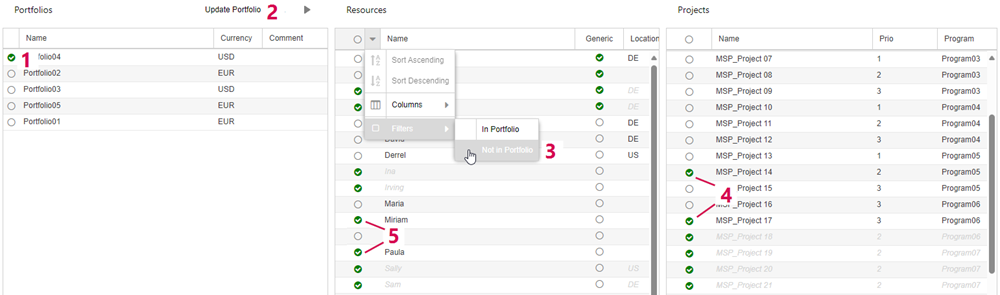
▪Select the portfolio in the Portfolios table (1).
In the Resources and the Projects table, items that are already in the portfolio are grayed out. They cannot be removed.
▪For a better overview, you can filter the Resources or Projects table for items that are not yet in the portfolio or by other criteria (3).
▪Select the resources or projects you want to add (4, 5).
▪Click Update Portfolio above the Portfolios table (2).
It is also possible to delete or rename a portfolio.
⚠ Deleting or renaming a portfolio means deleting the scenarios based on it in TPG PortfolioManager. Make sure the scenarios are no longer needed before you delete or rename the underlying portfolio.
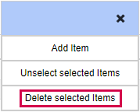
▪To delete a portfolio, select it in the Portfolios table and click the three dots above the table.

▪Select Delete selected Items from the drop-down menu and confirm with Yes in the warning prompt that appears.
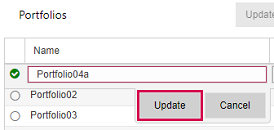
▪To rename a portfolio, select it and double-click its name.
▪Edit the name and click Update.