Checking in and out
An existing scenario can be opened on the Scenario tab.
▪To open the list of scenarios, click Open in the Scenario group of the menu bar.
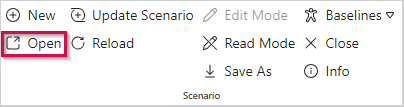

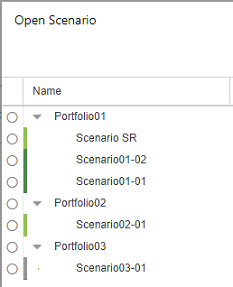
▪To open a scenario, double-click its name, or select the name and click Open at the bottom right.
In TPG PortfolioManager, a scenario can be edited only by one user at a time. To edit a scenario, it must be checked out by you.
A colored line at the left edge indicates if a scenario is checked in or out:
Gray: Either someone else has set the scenario to the edit mode, i.e. it is checked out. Or you do not have permissions for the underlying portfolio. In both cases, you can open and read the scenario but cannot edit it.
Light green: The scenario is in the read mode, i.e. it is checked in. After opening the scenario, you can check it out by clicking Edit Mode in the Scenario group of the menu bar.
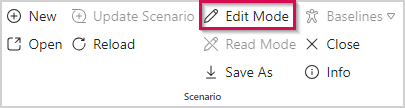
Dark green: The scenario has been checked out by you. After opening the scenario, you can edit it directly.
To enable other users to edit the scenario, check it in by clicking Read Mode in the Scenario group of the menu bar.
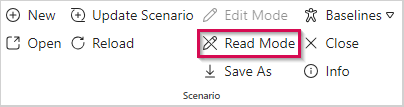
The last saved mode will be kept when you close the scenario.
➤ It is recommended to set baselines before editing a scenario.
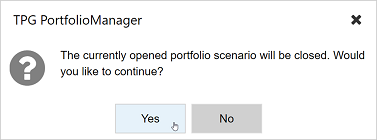
If you have opened a scenario and open another one, you will be asked whether the current scenario should be closed:
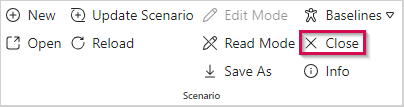
▪To close a scenario without opening another one, click Close in the Scenario group of the menu bar.