Auto Committing an entire project
|
Planning Procedure > Committing projects > Auto Committing an entire project |
For projects with highest priority, you may want to commit all resources as requested. You can do so with one click. The function is also useful to copy a big amount of request data to the Commitments row and then edit the commitments.
▪Go to the project and select the checkbox in the Auto column.
The cells in the project row will turn green.
When Auto is selected and you update the project, all request data for this project will automatically be copied to the Commitments row.

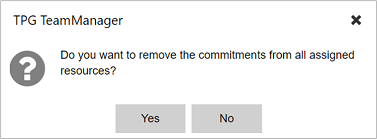
▪If you want to undo this action and withdraw all commitments for the project, deselect the Auto checkbox and click Yes in the query that appears.
▪If you want to keep the commitments made but stop automatic commitments for the future, deselect the Auto checkbox and click No in the query that appears.
➤ If the Auto checkbox is set and the Project or Assignments of your Team are deleted in the Enterprise Tables on the data base either because the Assignements of your Team are deleted or the entire Project is deleted, then the Project will be deleted on your Team as well including existing Commitments!