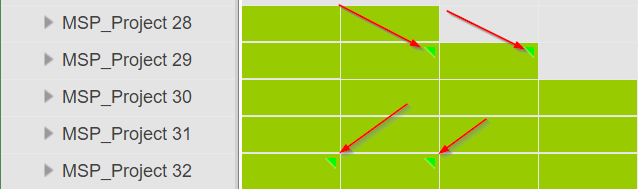
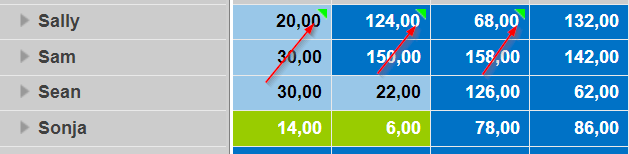
Entering/Deleting time-phased comments
Sometimes you may want to enter a comment on the situation in a specific time phase. Time-phased comments can be entered in the Requests or Commitments rows either on the individual resource level or in the details table.
▪In the main table, go to a resource and expand a project.
▪Alternatively, select a project in the main table and select Details in the Views group of the menu bar.
▪Expand one of the resources shown in the details table.
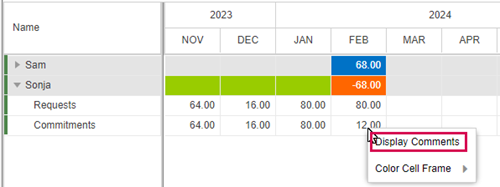
▪Right-click in a cell under the timeline and select Display Comments.
▪Enter your comment in the lower part of the window and click Save.
The comment will be displayed in the upper part of the window.
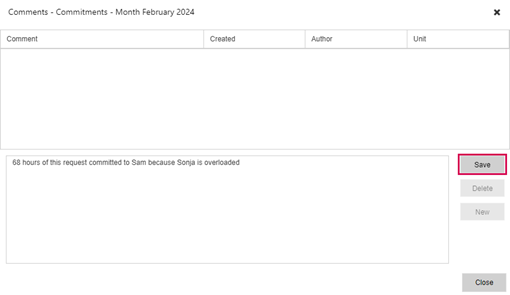
▪Click Close at the bottom right.
In the table, a red triangle will indicate that there is a comment for this time phase.
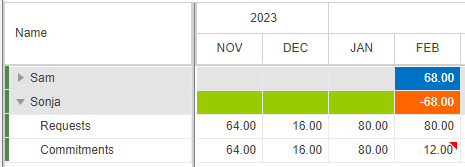
➤ Comments and red triangles will be displayed when the timeline unit is the same or a smaller one than at the time of entering the comment. For example, if you change the timeline unit from months to weeks, the red triangle and the link to the comments window will be shown in each week of the month.
If you change the timeline unit to a larger unit than at the time of entering the comment, e.g. from months to quarters, the red triangles will not be shown and the comments can't be accessed.
▪To delete comments or to add a new one, open the comments window via right-click in the cell > Display comments.
▪To delete a comment, select it and click Delete (1).
▪If none of the existing comments is selected, you can add a new one directly. Otherwise, click New (2) first.
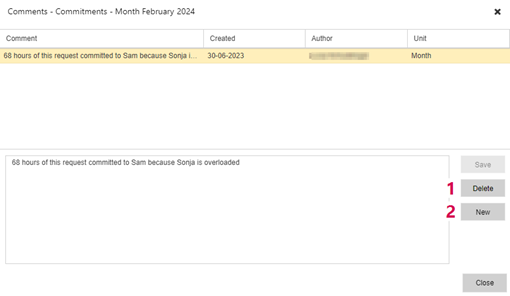
➤ You can delete a comment only if you are the author. Comments entered by other users are read-only.
It is not possible to edit comments. If you want to make changes, delete the comment and enter a new one.
▪Highlighted cells will be Rolled up to higher levels, so that you can see on Resource or Project level are Details which are possibly collapsed shown as a green triangle.