Timeline range
|
Work Interface and Views > Plan > Timeline range |
By default, the timeline shows years on the main scale and 24 months as planning units on the lower scale, starting with the current month. You can shift the timeline or change the number of visible planning units.
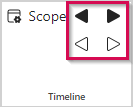
To shift the timeline start by units, use the buttons in the Timeline group of the menu bar:
▪To shift the timline start back or forward by one unit on the main scale, click the double arrows.
▪To shift the timeline start back or forward by one planning unit, click the single arrows.
The timeline start can also be shifted to the data of a specific project. This is possible for projects that are running or will start in the future. The start date may be outside the current scope of the plan.
▪Select the project either on the project level or the individual resource level.
▪Click Scroll to Project in the Display group of the menu bar.
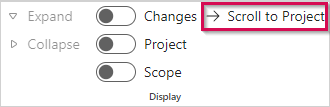
➤ This function does not scroll to dates in the past. Scroll to Project is enabled only if the selected project has time-phased data on or after the current date.
If the project has already started, the timeline start will shift to the current date.
If the project will start in the future, the timeline start will shift to the start date of the selected project.
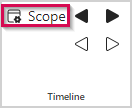
▪To change the number of planning units to be shown, click Scope in the Timeline group of the menu bar.
▪Enter the desired number of visible columns and click OK.

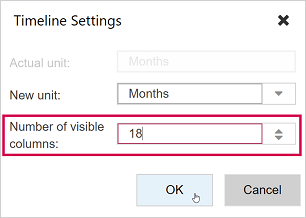
➤ Changing the number of visible columns can be used to see the summarized time-phased data of a specific time range in the Total Range column.
For changing the units themselves, see Timeline units.