Moving projects
|
Planning Options > Editing projects > Moving projects |
To optimize the resource utilization, projects can be moved on the timeline.
▪Make sure baselines have been set for the projects you want to move.
This will make it easier to restore the original plan if necessary.
▪Select the projects you want to move (2).
In the example below, the projects are grouped by program, and two projects of Program06 are selected. If you select the checkbox of the group item, all corresponding sub-items will be selected.
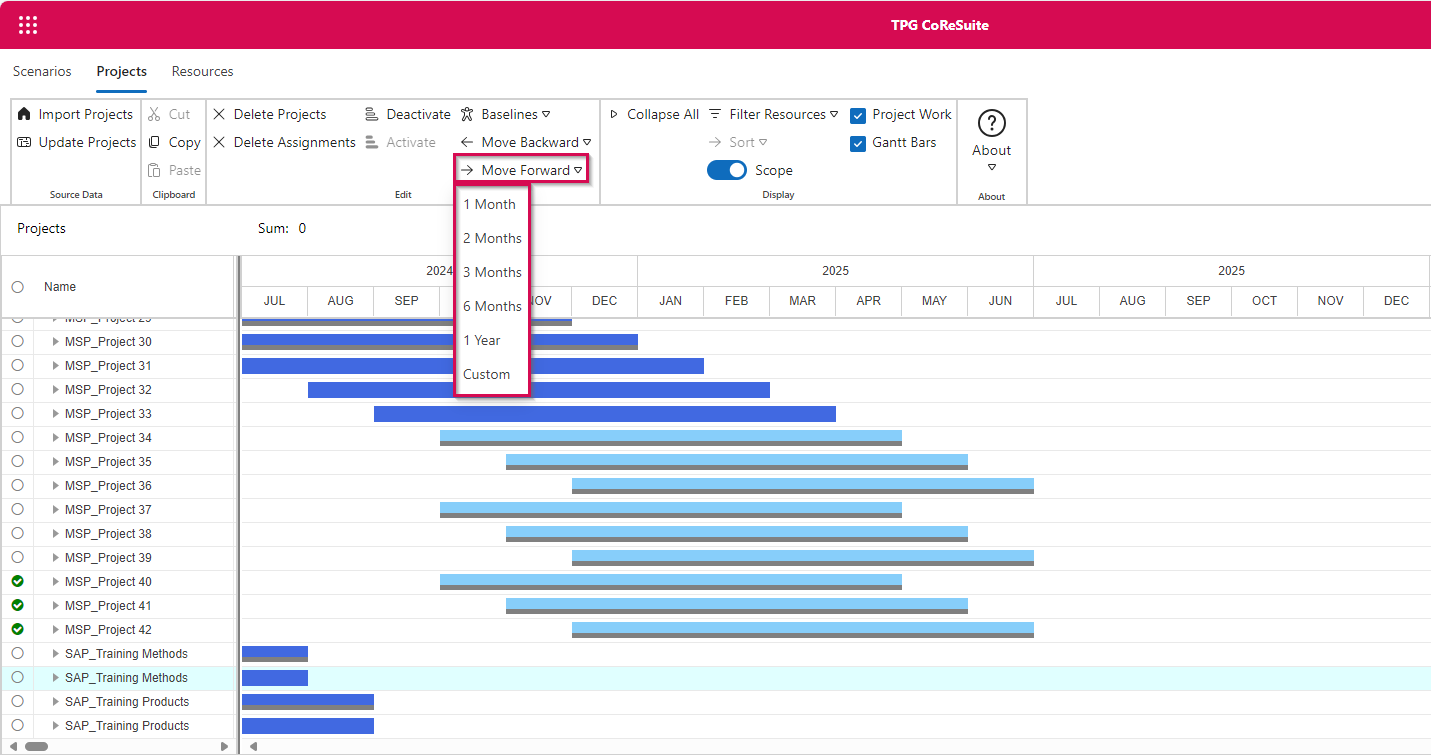
▪Click the arrow below Move in the Edit group of the Projects tab (1). Go to the desired shift direction in the drop-down menu and select the period by which the project(s) should be moved.
In this example, the selected projects will be moved forward by half a year.

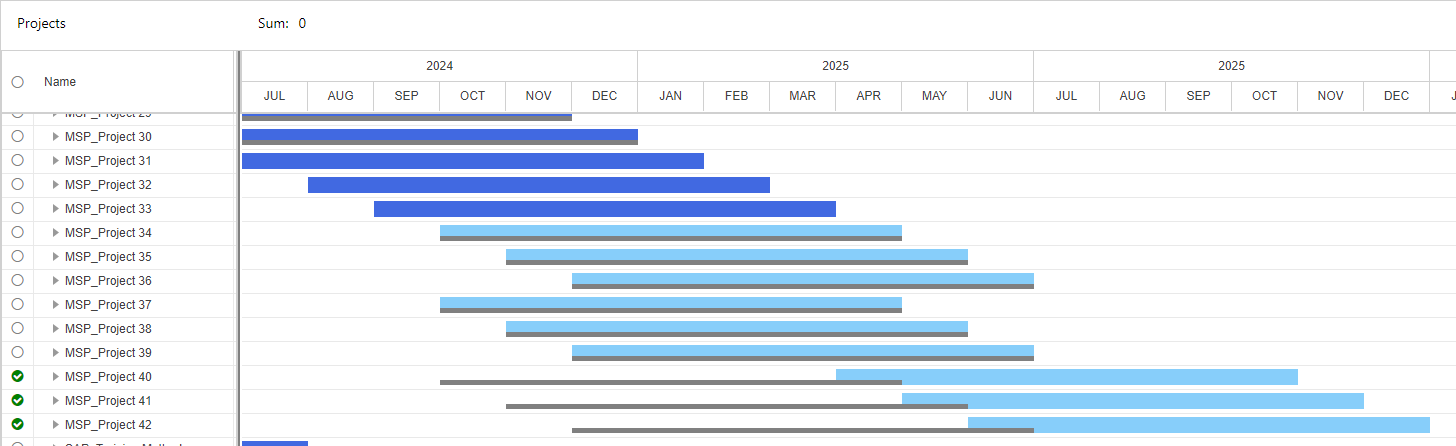
➤ In the same way, you can move resource assignments on the timeline.