Changing the task structure
After the tasks have been created, you may want to change their order or hierarchical level.
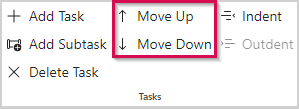
▪To change the order, select a task and click Move up or Move down in the Tasks group of the menu bar.
A summary task will be moved including its sub-tasks.
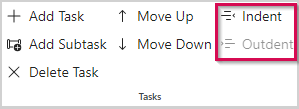
▪To change the hierarchical level, select a task and click Indent or Outdent in the Tasks group of the menu bar.
A summary task will be downgraded or promoted including its sub-tasks.
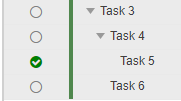
In this example, indenting Task 5 will convert it to a sub-task of Task 4:
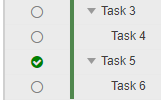
Outdenting Task 5 will promote it to the same level as Task 3 and convert Task 6 to a sub-task of Task 5:
When the task structure is complete, the next step is to assemble the resources.