Timeline units
|
Work Interface and Views > Timeline > Timeline units |
By default, the timeline shows years on the main scale and months as planning units on the lower scale, starting with the current month. You can change the planning units to days, weeks, quarters or years.
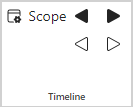
▪In the Timeline group of the menu bar, click Scope.
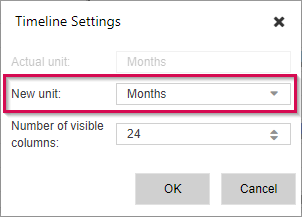
▪Select the desired planning unit from the drop-down menu and click OK.
The unit of the main scale changes automatically according to the unit of the lower scale. For example, if you set the lower scale unit to Weeks, the main scale will automatically change to months including the year.

If the new unit is larger than the current one, the values of time-phased data will be summarized accordingly.
If the new unit is smaller than the current one, the values will be distributed linearly.
If the new unit is larger than the current one, the values of time-phased data will be summarized accordingly. If the new unit is smaller than the current one, the values will be distributed linearly.
The following table shows an example for the entries in the Absences row of a resource (October 2022 - March 2023):
|
Planning unit: Months |
Planning unit: Quarters |
|---|---|---|
Entries |
Nov: 8h, Dec: 40h, Jan: 24h |
Q4: 48h, Q1: 24h |
Switch unit to |
Quarters |
Months |
Outcome |
Q4: 48h, Q1: 24h |
Oct: 15.75, Nov: 16.5, Dec: 15.75 |
➤ When switching from months to weeks or from weeks to months, the accuracy of your inputs can get skewed. The reason is that weeks often go beyond months. To avoid skewed recalculation results, it is recommended that you choose and stick to a planning unit.