Highlighted Changes (Change Markers)
|
Planning Procedure > Importing projects > Highlighted Changes (Change Markers) |
Import Projects
New items like newly imported Projects will be marked with a green triangle. If changes to extisting items have been made the triangle will be yellow.
In the example below, new Projects "Project 64-69" have been imported.
Also changes have been made to the Request of Project "Show Change Markers", if you look at the details grid at the bottom, you see that these Changes are related to Sam.
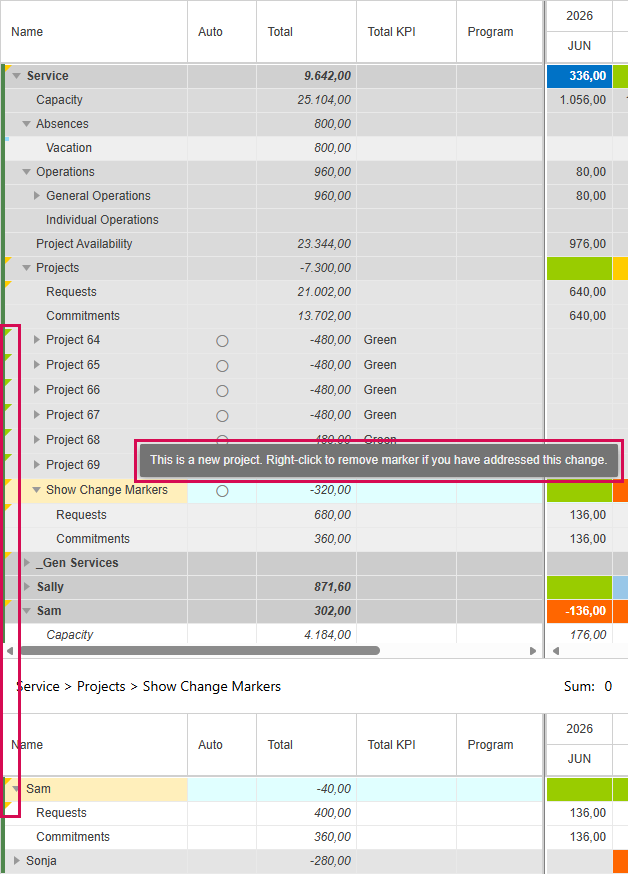
If you hover over one of the change markers you will see a Pop-Up which tells you what has been changed and how to remove this marker.
➤ Change Markers will persist in your plan until you actively remove them.
Merge existing with new change markers
While importing Projects you might get the below Message box:
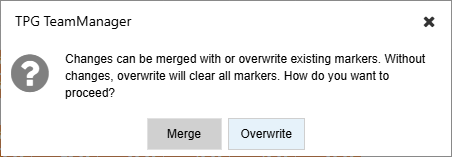
This box always appears when you import Projects and in your plan are existing Change Markers.
You can either:
▪Merge the new Markers with existing ones - then click on Merge
▪Overwrite the existing ones with the new ones - then click on Overwrite
Remove Change Markers
To remove a Change Marker do a right-click on an item which has a Marker.
▪In the context menu click on Clear Change Marker
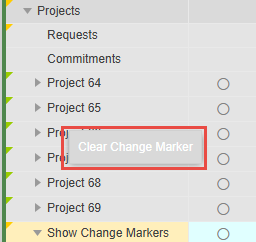
➤ If you click on a parent marker all subordinate markers will be deleted as well.