TPG MS Project Desktop Integration
After installation, the add‑in automatically attempts to connect to the site in your TPG PSLink instance and tenant specified during the setup process. The connection is established using your current Windows user context.
If the automatic connection fails, you can manually log in to the add‑in using the options provided in the Backstage area of your Microsoft Project desktop application.
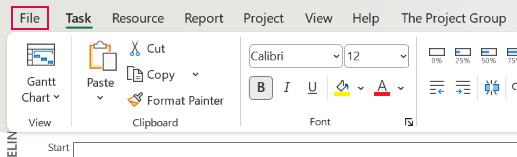
➢Open MS Project.
➢Click on File. ▶ The Backstage area opens.
➢Click on The Project Group. ▶ This section lists all installed products.
➢You can find TPG MS Desktop Integration under Installed Products.
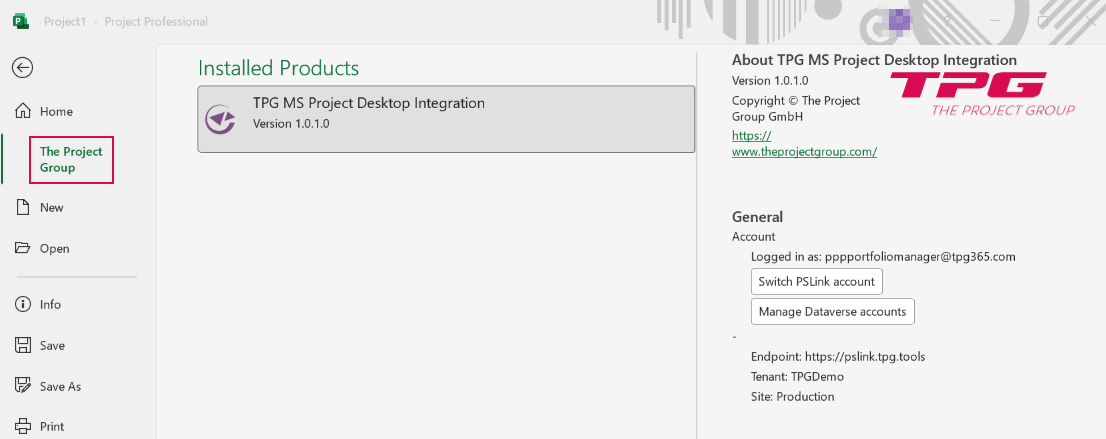
Information about Installed Products
On the right-hand side, you'll find information about the installed product - in this case, the TPG MS Project Desktop Integration:
▪About
▪Version number
▪Copyright notice with a link to the TPG homepage
▪General
▪Account: Currently logged-in user.
➢Click Switch account to change users.
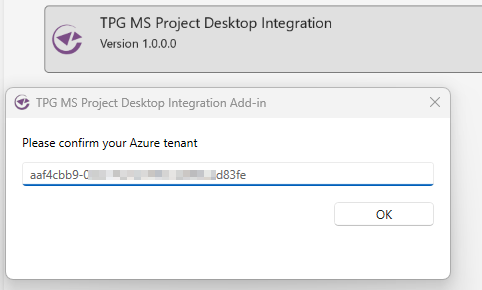
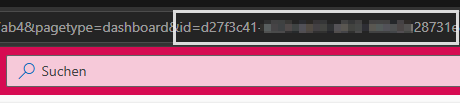
➢Enter the ID of the desired user in the field. You can find this in the URL in the browser’s address bar
▪Manage Dataverse accounts: List of accounts and environments used in impersonation jobs. This feature allows you to track which user is using which environment.
➢Click Sign out to make changes or reset the settings. The next time you run a job, you will be prompted to impersonate a user.
▪PS Link: Information about the endpoint, tenant, and site.
Configuration File
If you need to manually adjust the TPG PSLink instance, tenant, or site, you can modify the configuration settings of the add‑in.
The configuration file is located in the TPG MS Project Desktop Integration installation folder: <InstallFolder>\TPG.MSProjectAddin.dll.config
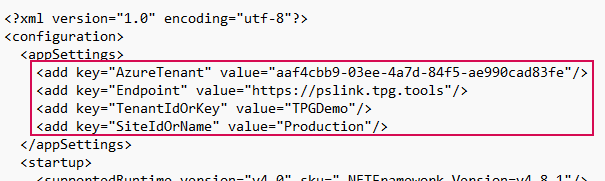
➢After making changes to this file, restart Microsoft Project for the changes to take effect.
⚠ Editing the configuration file incorrectly may prevent the add‑in from working properly. Only change settings if you are familiar with the configuration or have been instructed to do so.