Ribbon Customization
|
Configuration > TPG MS Project Desktop Integration > Ribbon Customization |
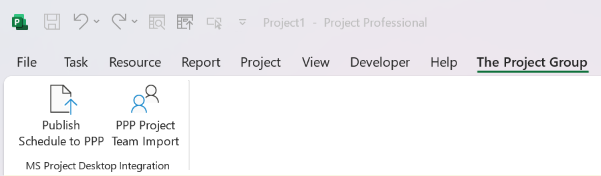
On the The Project Group tab in the Microsoft Project ribbon, you can display buttons that allow you to launch configured PSLink jobs from the "TPG MS Project Desktop Integration" add-in.
▶ The ribbon configuration is stored and managed centrally in PSLink. Tenant administrators and site administrators configure it in PSLink.
▶ On the client computer, make sure the following values are set correctly in the add-in configuration file (this is typically done during installation):
▪TenantIdOrKey
▪SiteIdOrName
Configure the Ribbon in PSLink
Follow these steps to configure the ribbon for a tenant/site pair:
➢Sign in to PSLink with a tenant administrator or site administrator account.
➢Select the target tenant.
➢Open Settings and go to the Ribbon Config tab. (1)
➢Select the target site from the Site drop-down menu. (2)
➢Click Upload Ribbon Config to upload a JSON file and create a new configuration. (3)
▶ You can obtain a job configuration template from your TPG consultant.
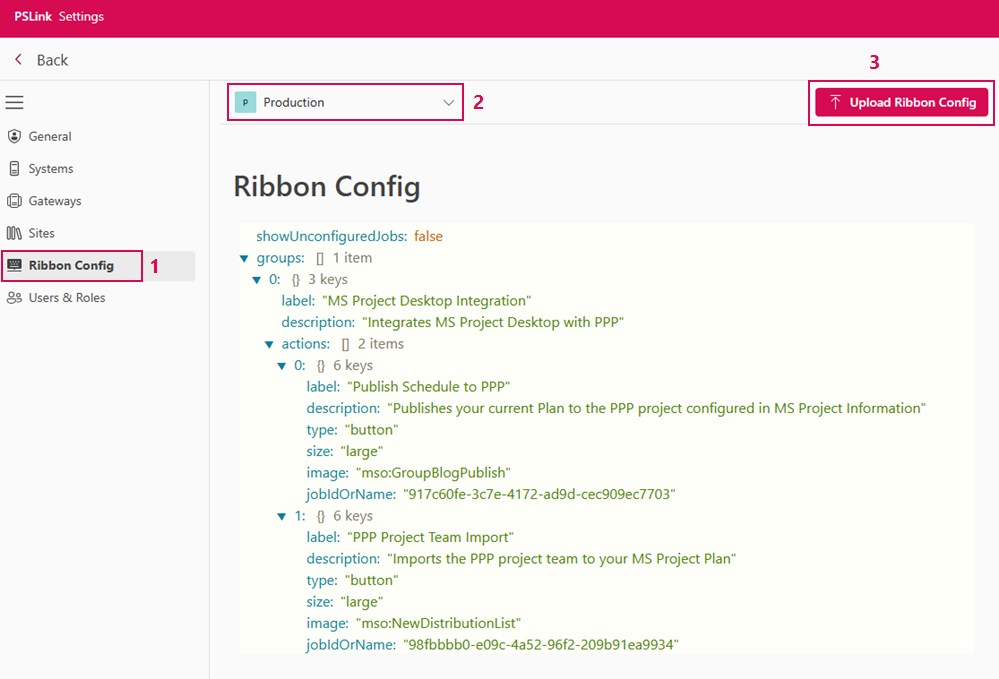
➢If you want to modify an existing configuration, upload a new version. This will overwrite the saved file.
▶ After uploading or updating the configuration, users must restart Microsoft Project so that the add-in can load the updated configuration.
Using the Ribbon in MS Project
The add-in uses TenantIdOrKey and SiteIdOrName to call the PSLink REST API and retrieve the ribbon configuration for the respective tenant/site pair.
To load the custom ribbon, end users should proceed as follows:
➢Open MS Project.
➢Navigate to the The Project Group tab. ▶ The default Sign In button appears.
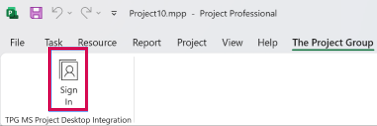
➢Click Sign In and sign in to PSLink via the add-in.
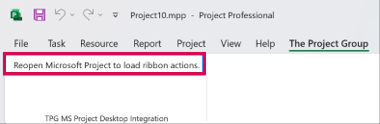
➢Restart Microsoft Project so that the ribbon loads with the configuration retrieved from your PSLink account.
▶ If the load is successful, the configured job buttons will replace the default Sign In button on the ribbon.
Ribbon configuration is not loading
▪User is not signed in
The add-in displays the default ribbon with the Sign In button. The API is not called, and no error regarding the ribbon configuration is displayed.
▪User is signed in, but configuration is missing or invalid
If tenant/site settings are missing or invalid, or if the configuration is missing, invalid, or cannot be loaded, the add-in displays the default ribbon layout without the Sign In button.
▶ In this case, the message Reopen Microsoft Project to load ribbon actions. appears, and an error message is displayed. Details are also logged in the Windows Event Viewer. Contact your PSLink tenant or site administrator to create or correct the configuration.
Structure of the Ribbon (JSON) Configuration File
Root element:
Field |
Type |
Required |
Description |
|---|---|---|---|
showUnconfiguredJobs |
boolean |
No (defaults to true) |
When true, an additional dynamic list of jobs from the tenant and site configured in the add-in that are not already represented as ribbon buttons is added to the ribbon. Set to false to hide this menu. |
groups |
array |
Yes |
Non-empty list of groups. Each group must contain at least one valid action. Currently, PSLink supports only one group per configuration. |
Group element:
Feld |
Typ |
Erforderlich |
Beschreibung |
|---|---|---|---|
label |
string |
No (defaults to the add in product name) |
Label shown on the ribbon for the group. If omitted or blank, the add-in product name is used. |
description |
string |
No |
Screen tip for the group (hover text). |
actions |
array |
Yes |
One or more actions. Each entry must satisfy the action rules below. |
Action element:
Feld |
Typ |
Erforderlich |
Beschreibung |
|---|---|---|---|
label |
string |
Yes |
Label shown on the ribbon button. |
description |
string |
No |
Screen tip for the button (hover text). |
type |
string |
No (defaults to "button") |
Currently, only buttons are supported; therefore if provided, this field must be set to "button". |
size |
string |
No (defaults to "large") |
Größe der Schaltfläche: “normal” oder “large”. |
image |
string |
No |
Button icon from the Office icon set. The icon name must be prefixed with "mso: ". Example: "mso:FileSaveAs" uses the Office FileSaveAs icon. Values without the "mso: " prefix are ignored. A value of exactly "mso:" is invalid. |
jobIdOrName |
string |
Ja |
Job-ID oder Jobname von PSLink, der ausgeführt werden soll, wenn der Benutzer auf die Schaltfläche klickt. |
Example of the Configuration file
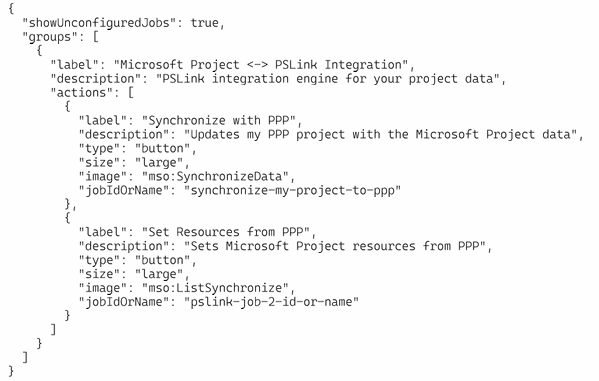
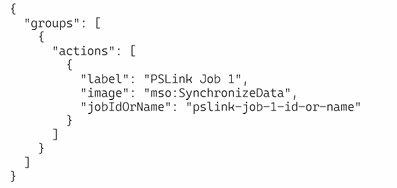
Use the following examples as structure templates.
➢Replace the placeholder/example fields and the values for “jobIdOrName” with your own values.
1. Basic Configuration (required fields and action icons only):
2. Extended Configuration (comprehensive customization options):