Actions - create and edit across projects
|
Actions > Actions - organize across projects > Actions - create and edit across projects |
Creating actions in the cross-project Kanban board:
There are two ways to create an action in the cross-project Kanban board:
➢Go to the state column to which you want to add an action.
➢Click on the three dots on the right-hand side of the state column. ▶ A drop-down menu opens.
➢Click on Add item.
▶ The action is inserted into the first swimlane. You can move the action to another swimlane via drag & drop, thereby assigning it to a different project. (see Actions - delete and move across projects)
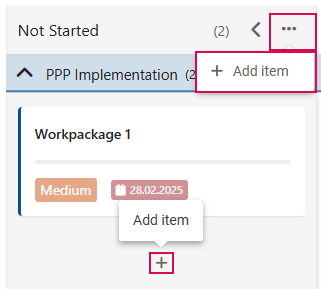
Or
➢Select the project to which you want to add an action and go to the project's swimlane.
➢Click on the plus symbol in the state column.
▶ A new action is created and appears in the state column and swimlane of the desired project.
Edit actions in the cross-project Kanban board:
You can edit the actions in the cross-project view. To do so, proceed as described in Edit Actions.