Compare Variants and Original Projects
|
Project Variants > Working with Variants > Compare Variants and Original Projects |
Project variants can be compared with the original project and its other variants on the Schedule, Resource Plan and Financials tabs. This is possible in the plan of the original project or one of the variants.
➢Click on Compare. ▶ A drop-down menu with all project variants appears.
➢Click on the variants that you want to compare with the currently open plan.
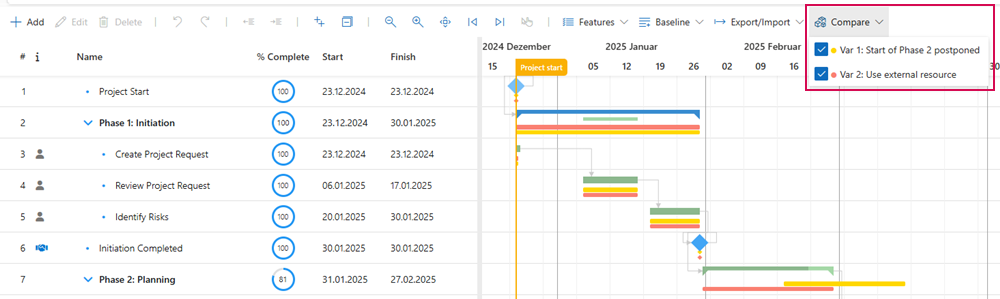
▶ You can select up to 3 variants for comparison in the schedule.
▶ A colored dot in front of the selected variant indicates the color in which the process bar is displayed in the Gantt chart.
▶ On the Resource Plan and Financials tab, you can compare all variants at once. These are displayed one below the other in the table.
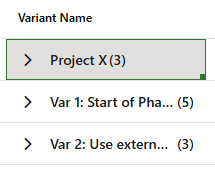
The compact view is recommended for a better overview.
▪In the schedule:
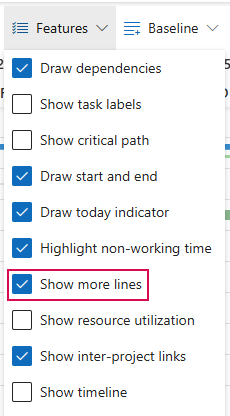
➢Click on Features and select Show more lines.
▪In the Resource or Financials plan:
➢Click on Settings (gear wheel) and select Show more lines.