Edit a Variant
|
Project Variants > Working with Variants > Edit a Variant |
To display and edit data in a variant, select the desired variant (e.g. Var 1) in the Project Variants sidebar.
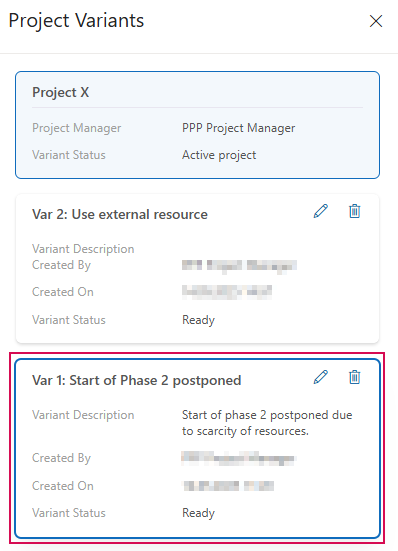
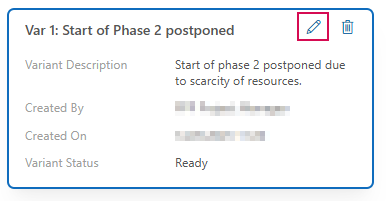
➢Click on the desired variant or on the edit icon for the variant. ▶ The corresponding project plan opens.
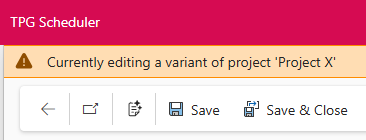
For a short time, a banner under the Header Bar indicates that you are editing a variant.
➢Edit the data on the project tabs as required. How to edit the data is described in detail in the chapters Task planning in the Schedule, Resource Planning and Budget Planning.
Example:
In this example, the schedule is changed: An interval of 10 working days is inserted before phase 2. The variant project thus ends 2 weeks later than the original project.
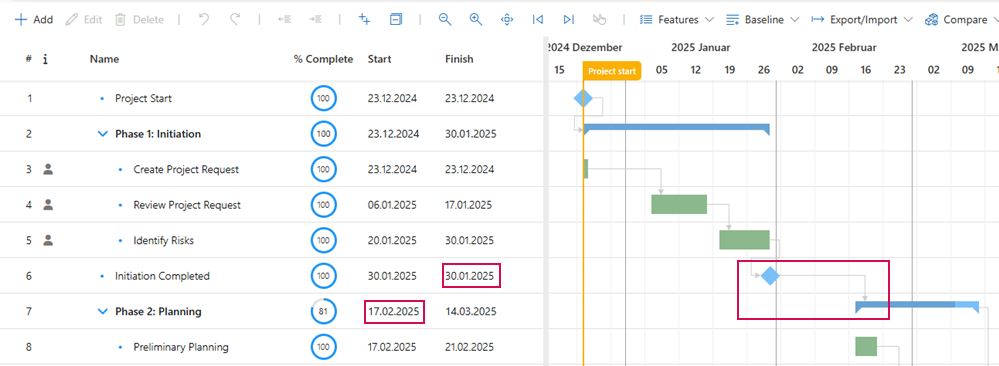
If changes are made to the schedule or assignments, the resource plan must be adjusted.
➢Open the Resource Plan tab and click on Sync. ▶ The Synchronize rows dialog box opens.

➢Click Overwrite existing.
➢Click Include working values if you also want to transfer the working values.
➢Click on Update.
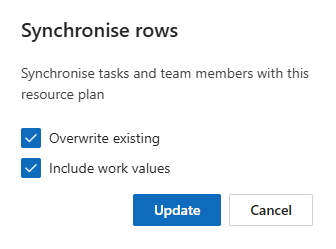
▶ There should no longer be any resource overloads in the resource plan.
➢If the finances are affected by changes, open the Financials tab and adjust the data by moving the costs to later periods. (see Budget Planning)
Delete Variant:
➢In the Project Variant sidebar, select the variant you want to delete.
➢Click on the delete icon.