Currencies
In the Currencies section, you can manage your currencies. Here, you can create new currencies and edit existing entries.
In the following sections, we will guide you through all available features and show you step by step how to create, customize, and manage currencies.
➢Click Currencies in the navigation bar to go to the Currencies section.
▶ The Currencies section opens by default in the Active Currencies view.
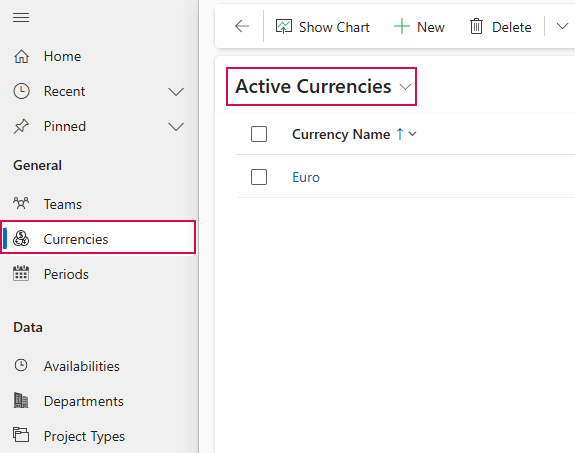
In this view, all active currencies are displayed in a table.
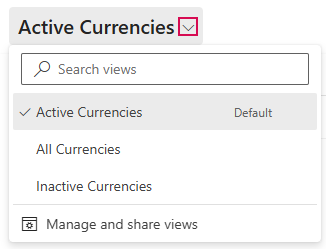
You can switch to other views using the drop-down menu:
➢Click the down arrow and select a view:
▪All Currencies: A table listing all currencies.
▪Inactive Currencies: A table listing all inactive currencies.
The following section describes how to create, edit, and manage currencies.
▶ The procedure is described in the Active Currencies default view. The procedure is the same in the other views.
Create Currencies:
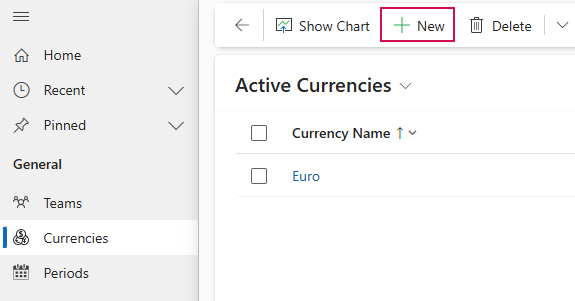
➢Click New in the command bar. ▶ The New Currency form opens.
➢Fill out the form:
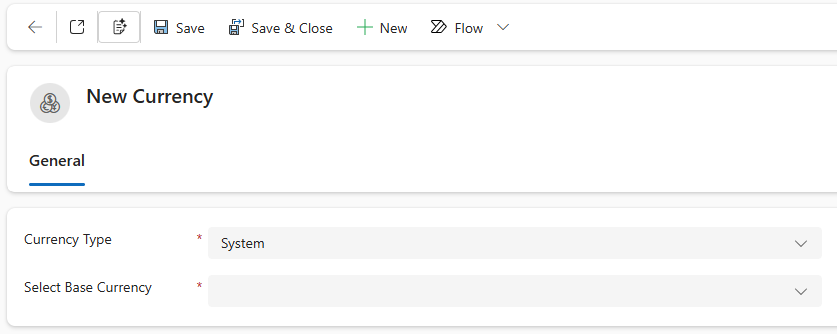
▶ All required fields are marked with a red asterisk.
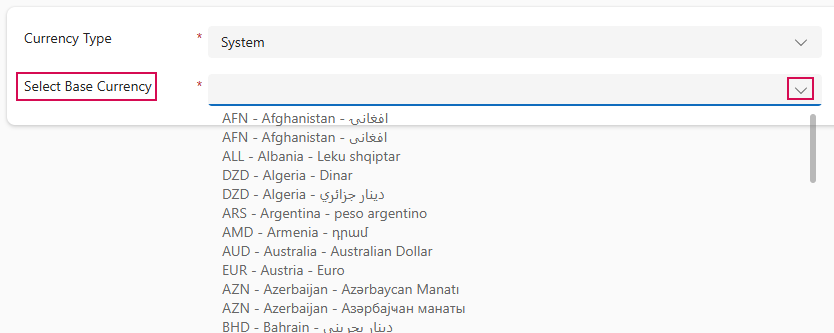
➢Currency Type:
➢Click the arrow to select the type from the drop-down menu.

➢Select Base Currency:
➢Click the arrow to select the base currency from the drop-down menu.
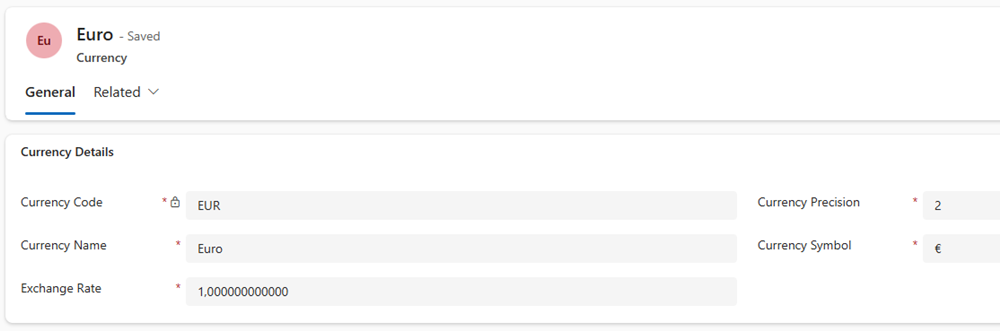
▶ The Currency Details field opens.
➢Enter the exchange rate.

▶ The fields Currency Code, Currency Name, Currency Precision, and Currency Symbol are automatically filled in by the system. You can edit these fields.
▶ Fields that cannot be edited are marked as locked with a lock icon.
➢Click Save or Save & Close on the command bar.

▶ A new Currency has been created.
Edit Currencies:
Editing an existing currency follows the same process as creating one: All fields that have already been created can be modified as described above.
▶ Fields that cannot be edited are marked as locked with a lock icon.
➢Select the currency you want to edit, e.g., Euro.
➢In the Active Currencies view, click on Euro. ▶ The Euro form opens.
➢Enter the desired changes.
➢Click Save or Save & Close on the command bar.