Budget Planning
Labor costs are not calculated automatically in TPG PPP. You can enter financial data on the Financials tab for a cost overview.
Available views in cost planning
There are two different views available in cost planning, which differ in terms of the period displayed:
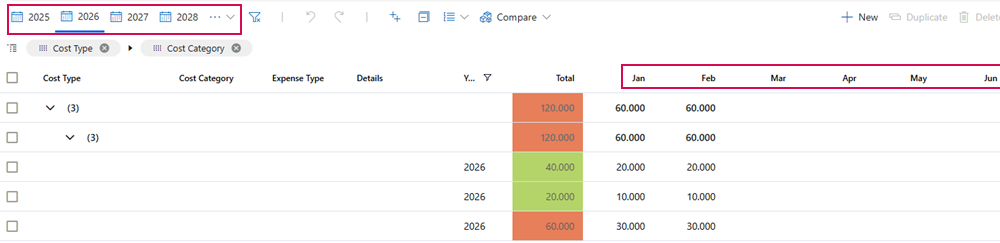
▪The monthly view for a single year is the default view.
In this view, costs are planned and displayed on a monthly basis within a calendar year. It is particularly suitable for detailed cost planning within a year.
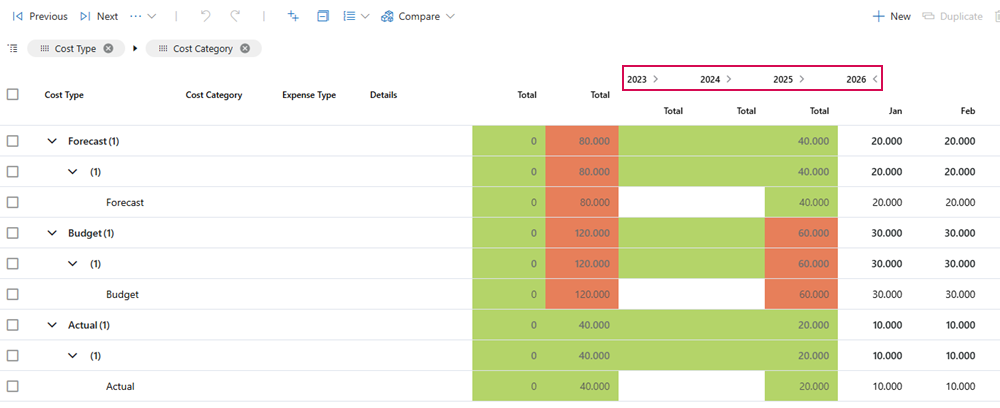
▪In addition, the Multi-year view is available.
In this view, cost plans are displayed over several years. The Multi-year view facilitates an overview of long-term cost developments and planning across annual boundaries.
▶ The functions of the buttons are the same as in the Resource Plan tab. (see Resource Plan tab - Create Resource Plan manually)
▶ For clarity, the steps are shown using the default view.
▶ The use of the Multi-year view is described in the section Use Multi-year view in Resource Plan.
Add financial data:
➢Go to the Financials tab.
➢For each cost item, create rows for the Budget, Forecast and Actual cost types:
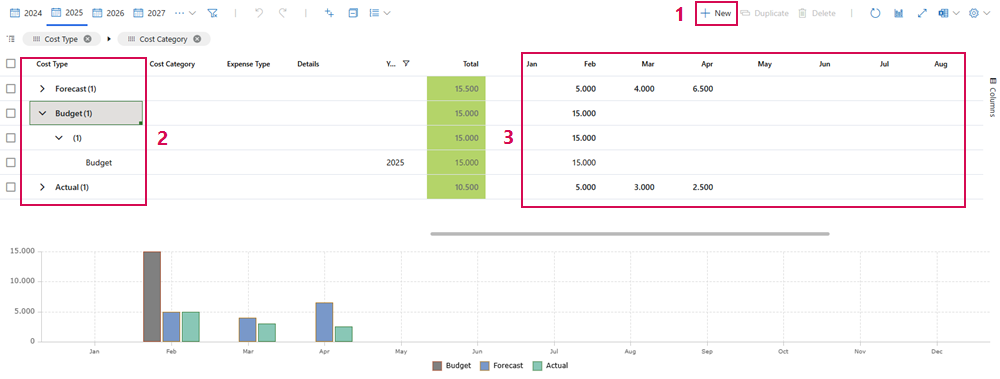
➢Click on New. (1)
➢Click in the Cost Type cell. ▶ A drop-down menu opens.
➢Click on Budget, Forecast or Actual. (2)
➢Enter the available budget and the expected costs for each time period of the project.
➢Click in the cell of the desired time period. (3)
➢Enter the amount.
▶ Total updates automatically.
Add to or update the actual data and forecasts as the project progresses.
▶ Totals are also displayed on the Project Details tab under Project Estimates. (see Project Details)