Delegations
In the Delegations section, you specify which users are authorized to perform timesheet activities on behalf of other users. The delegation matrix allows you to centrally manage substitution arrangements.
➢Click Delegations in the navigation bar to go to the Delegations section.
▶ By default, the section opens in the Active Delegations view.
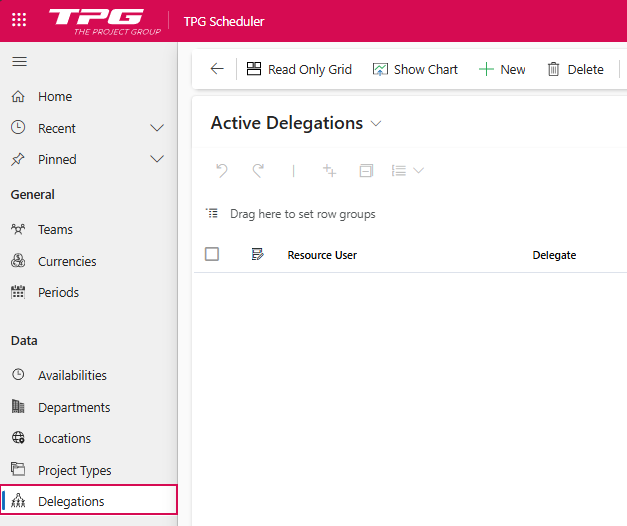
In the Delegates table, you define the delegation relationships between users. Each entry specifies which delegate is authorized to act on behalf of a specific resource user.
▪Resource User: The user for whom time is to be tracked.
▪Delegate: The user who is authorized to perform timesheet activities on behalf of the resource user.
Create a Delegation:
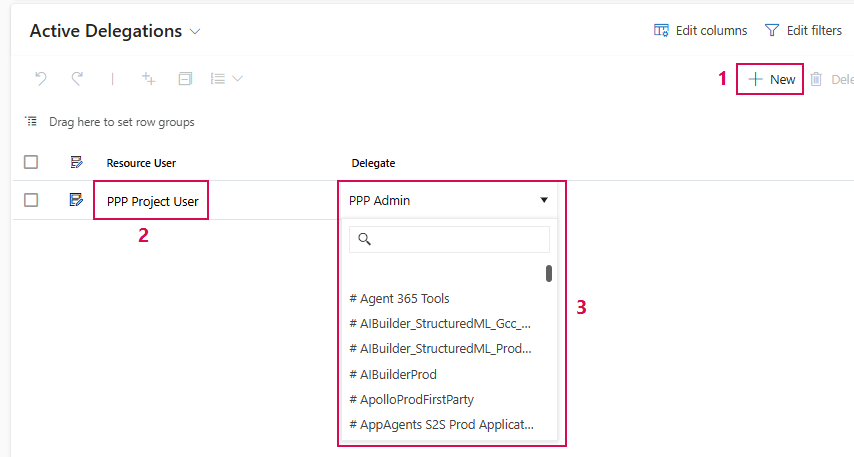
➢Click New. (1) ▶ A new row appears.
➢In the Resource User field, enter the user for whom time should be tracked. (2)
➢In the Delegate field, enter the user who will track the time on their behalf. (3)
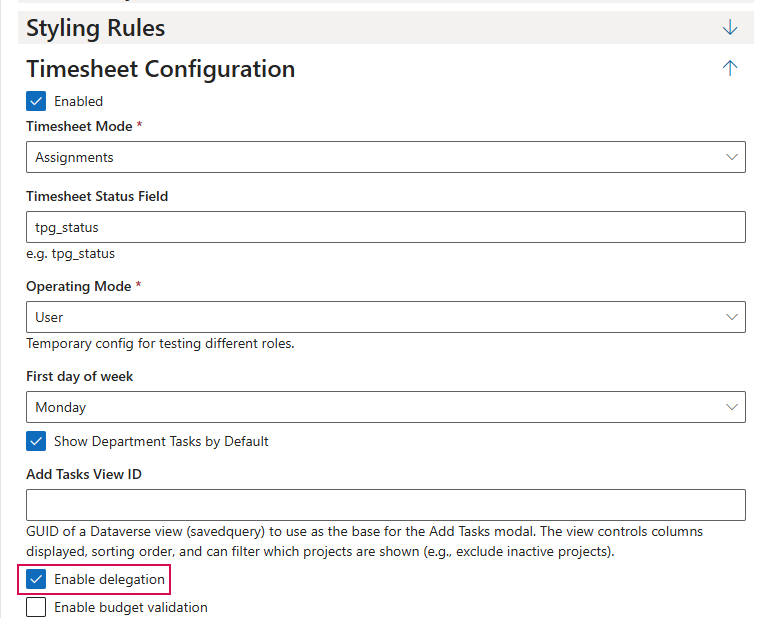
▶ To use delegations in the timesheet form, the Enable delegation option in the Timesheet Configuration section of the timesheet form settings must be enabled.
Permissions and Prerequisites
Users with the “Resource Manager” role can fully manage the Active Delegations table. Other roles have read permissions so that the delegation feature in Timesheets can be used.
In addition, the “Timesheet Delegate” security role is available. This role allows users to act as a delegate for another user, provided they do not have administrator rights or the “Resource Manager” role.
▶ Recommendation: Create a Dataverse Owner team for Timesheet delegates. When you add a user as a Delegate, you should also assign them to this team. Automatic assignment is not yet available in this version and must be performed manually.
Each delegate must also be a member of the resource pool. If this is not the case, the delegated user’s timesheet cannot be loaded.
▶ A detailed description of the features and options in this area can be found in the PPP User Guide.