TPG Scheduler Configuration
|
Configure Settings for Content Pages > TPG Scheduler Configuration |
The following section describes how to configure the TPG ProjectPowerPack (PPP) Scheduler. The configuration is stored as a JSON object and allows you to selectively enable or disable features, or customize them to meet your organization's requirements.
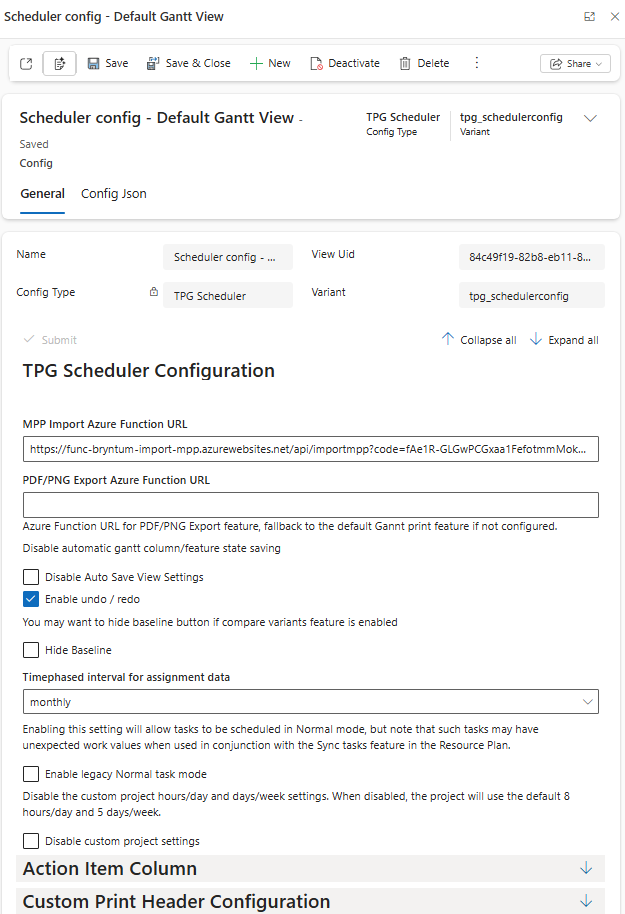
MPP Import Azure Function URL:
Importing Microsoft Project files (*.mpp) is enabled.
➢Enter an Azure Function URL in this field to enable the import.
PDF/PNG Export Azure Function URL:
The Export as PDF and Export as PNG options are enabled.
➢Enter an Azure Function URL for the PDF/PNG export function in this field.
▶ If no Azure Function URL is configured here, the default Gantt print function will be used.
Disable Auto Save View Settings:
➢Check or uncheck the Disable Auto Save View Setting checkbox. ▶ “Automatically save view settings” is enabled or disabled. This setting prevents changes to the view from being saved to the user's local storage.
Enable undo/redo:
➢Check or uncheck the Enable undo/redo checkbox. ▶ This enables or disables the undo/redo function.
Hide Baseline:
➢Check or uncheck the Hide Baseline checkbox. ▶ The baseline button will be shown or hidden.
Timephased interval for assignment data:
This setting determines the interval at which effort data is calculated.
➢Select the desired interval from the drop-down menu.
Available values:
▪weekly: Weekly calculation
▪monthly: Monthly calculation
▪none: No calculation
Enable legacy Normal task mode:
This setting allows you to re-enable the previous Normal scheduling mode for task scheduling.
➢Check or uncheck the Enable legacy Normal task mode checkbox.
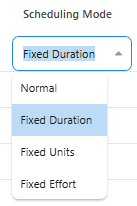
When this option is enabled, an additional Normal option appears in the Scheduling Mode column, allowing tasks to be scheduled according to the previous settings.
Disable custom project settings:
This setting sets the default calendar settings to 5 days per week and 8 hours per day and prevents users from adjusting these values for project calendars.
➢Check or uncheck the Disable custom project settings checkbox.
Complete the configuration:
➢Click Submit at the very bottom to apply the settings.