Add tasks to Timesheets
There are three ways to add a task to Timesheets:
1.Insert a task using the Add tasks drop-down menu.
2.Create a new row in the table.
3.Insert existing tasks that are marked as favorites into the table.
Add tasks drop-down menu:
➢Click on Add tasks. ▶ The drop-down menu opens.
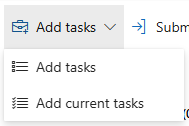
➢Click on Add tasks. ▶ All projects that contain tasks in the selected time period are displayed.
➢Select the task you want to add to the table by clicking on the checkbox.
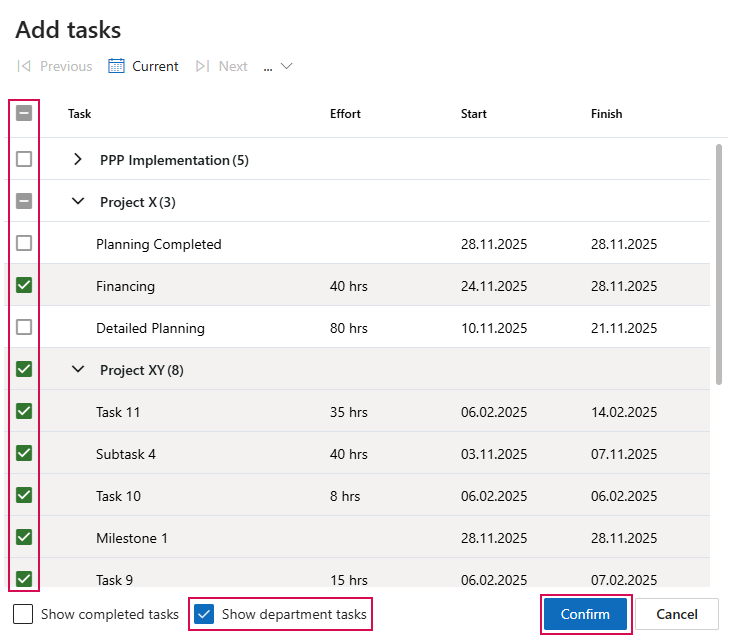
➢(Optional) Select the Show department tasks option to also select tasks that are assigned to generic resources in your department.
▶ Advantage: This allows you to record team- or department-related tasks, even if they are not specifically assigned to you. This means that team-related activities can be booked independently without having to duplicate or reschedule processes for individual persons. This speeds up time recording and facilitates collaboration on jointly responsible tasks.
▶ If the Show department tasks checkbox is not available or is not displayed, it must be activated by the administrator.
Or
➢Click on Add current tasks to insert all tasks that take place in the selected period.
➢Click on Confirm.
▶ The selected tasks are added to the Timesheets table.
Add a new row to the table:
➢Navigate to the week in which you want to add tasks. (1)
➢Click New. (2)
▶ A new row appears in the table.
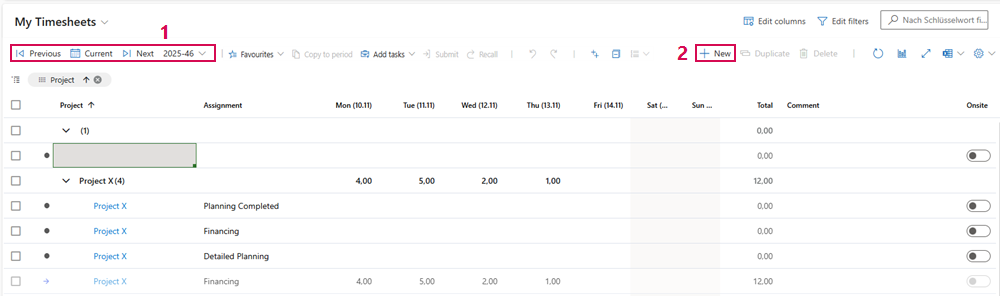
➢Click in the Project cell. ▶ A drop-down menu opens.
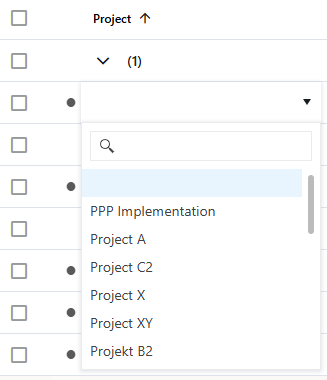
➢Select the desired project.
Use favourites:
Favourites allow you to transfer existing tasks to other weeks. The transfer can be done with or without recorded working hours.
Marking favourites:
➢Check the box for the task you want to mark as a favourite.
➢Click on Favourites. ▶ The drop-down menu opens.
➢Select Add to favourites.
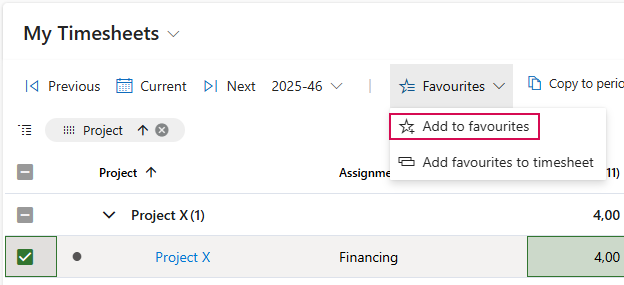
▶ The selected task will be displayed in the My Favourites view.
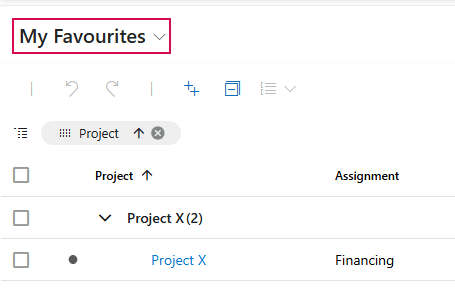
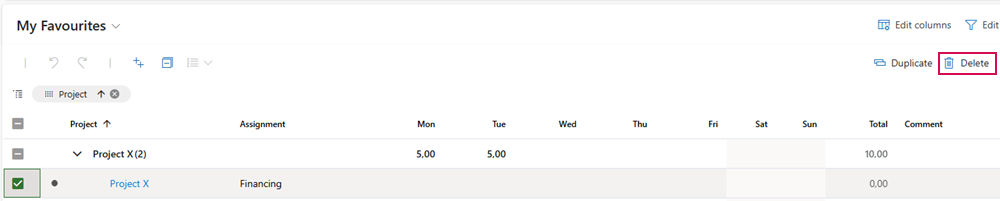
▶ If you no longer need a favorite, delete it from the My Favourites view.
Insert favourites:
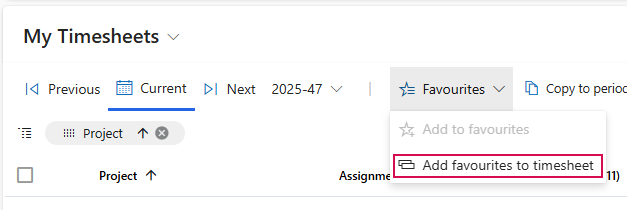
➢Navigate to the week in which you want to insert the favourites.
➢Click on Favourites.
➢Click on Add favourites to timesheet. ▶ A form will open.
➢Select the tasks you want to insert. (3)
➢Check the Include values checkbox to transfer the working hours of the task. (4)
➢Click Confirm. (5)
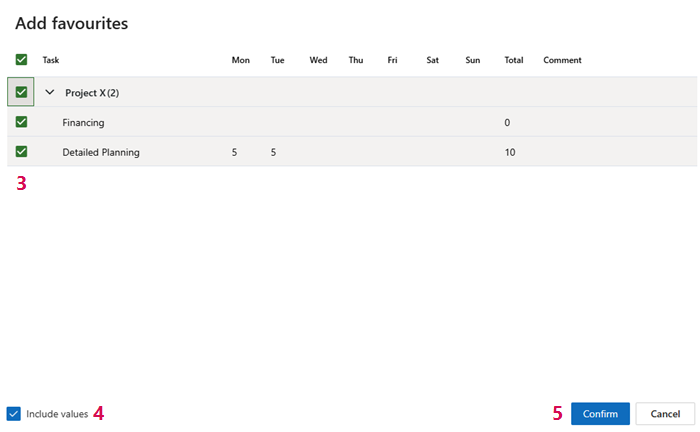
▶ The tasks are added to the desired week.
Copying Tasks to Other Time Periods
The Copy to period function allows you to transfer one or more existing tasks from your time sheet to other time periods. This copies the tasks along with their associated information, but does not transfer the hours that have already been recorded. This allows you to quickly set up regularly recurring tasks for future time periods and reduces the effort required for manual re-entry.
➢Select the task or tasks you want to copy to a different time period by checking the corresponding checkbox.
➢Click Copy to period. ▶ A form opens.
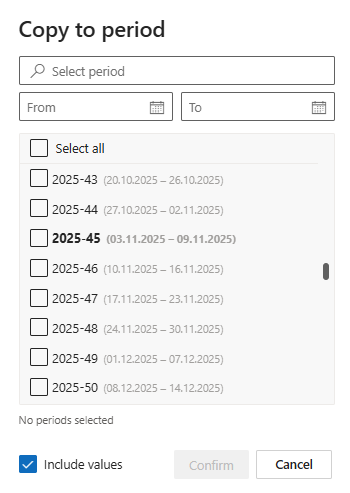
➢Use the input fields to enter the exact time period (1) or a time range (2).
➢Select the desired time periods by checking the corresponding checkboxes. (3)
➢Check the Include values checkbox to transfer the activity’s working hours. (4)
➢Click Confirm. (5)
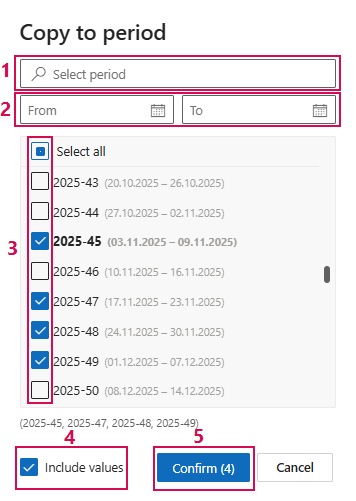
▶ The tasks are added to the selected time periods.