Command Bar
The Command Bar is located above the Content Area.
The Command Bar contains buttons that provide you with various functions depending on the Content Area (e.g., Home, Portfolios, Programs, Projects, Actions). Some of these buttons are standardized and the same in every view, while others are displayed additionally depending on the Content Area.
Projects Content Area view
The following section explains the buttons using the Projects Content Area as an example:
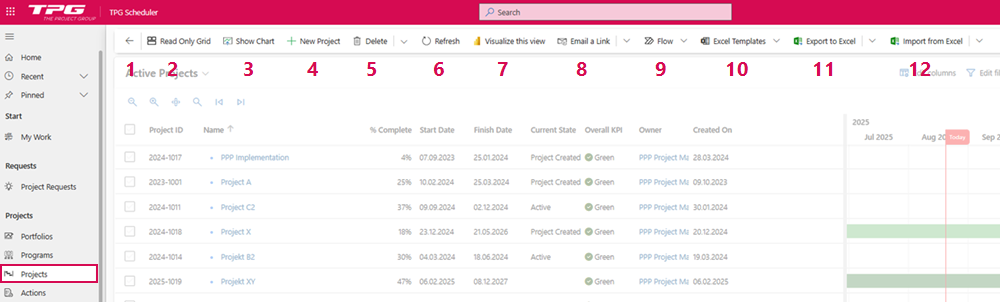
▪Go Back: Navigates to the previously opened page. (1)
▪Read Only Grid: Gantt Chart is hidden. (2)
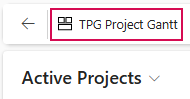
➢Click on Read Only Grid ▶ The Gantt Chart is hidden and only the table with the active projects is displayed.
➢Click on TPG Project Gantt to display the Gantt Chart again.
▪Show Chart: Displays charts for the data records in the table in the Content Area (e.g., Projects). (3)
➢Click on Show Chart. ▶ A diagram will be displayed. Various options are available:
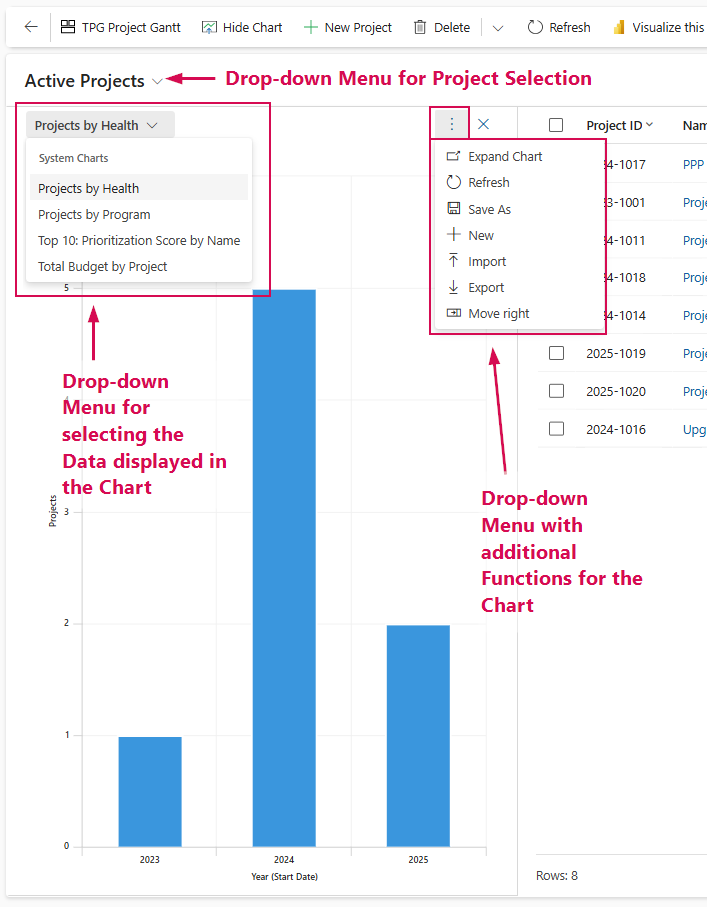
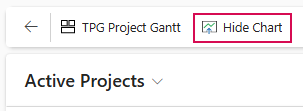
➢Click on Hide Chart, to hide the chart.
 |
▪New Project: Create a new Project. (4)
▪Delete: Deletes the Projects. (5)
⚠ This action cannot be undone.
▪Refresh: Page is being updated. (6)
▪Visualize this view: Creation of a visual report in Power BI about the current view. (7)
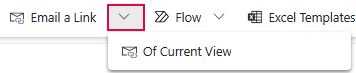
▪Email a Link: Sends a link to selected data records by email. (8)
➢Click the down arrow to send a link to the current view.
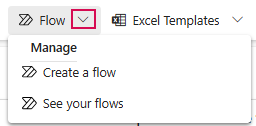
▪Flow: Runs a Flow for the selected project. (9)
➢Click the down arrow to manage Flows.
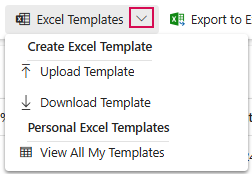
▪Excel Templates: Creation of Excel documents or templates. (10)
➢Click the down arrow to create Excel templates.
▪Export to Excel: Exports the data to a static or dynamic Excel worksheet or to an Excel pivot table. (11)
▪Import from Excel: Import data from Excel spreadsheet. (12)
▶ Standard chart views are displayed automatically when enabled. Most tables already contain basic charts, and additional charts can be added individually. Please contact your administrator or TPG Support for assistance with this.
View with selected project
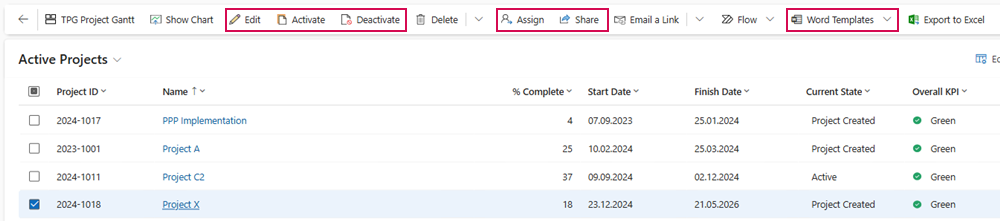
Once one or more projects have been selected or marked, additional commands appear in the Command Bar:
▪Edit: Edit Project.
▪Activate: Activate Project.
▪Deactivate: Deactivate Project.
▪Assign: Changes the owner of the selected Project.
▪Share: Shares the Project with selected individuals or teams without changing ownership.
▪Word Templates: Creates Word documents and templates.
View within a Project
Once a project is open, project-specific commands appear in the command bar:
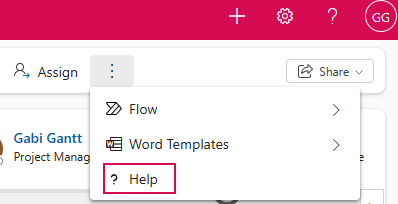
▪Help: Opens the relevant help page in a panel, allowing you to access the user guide for the currently displayed area directly.
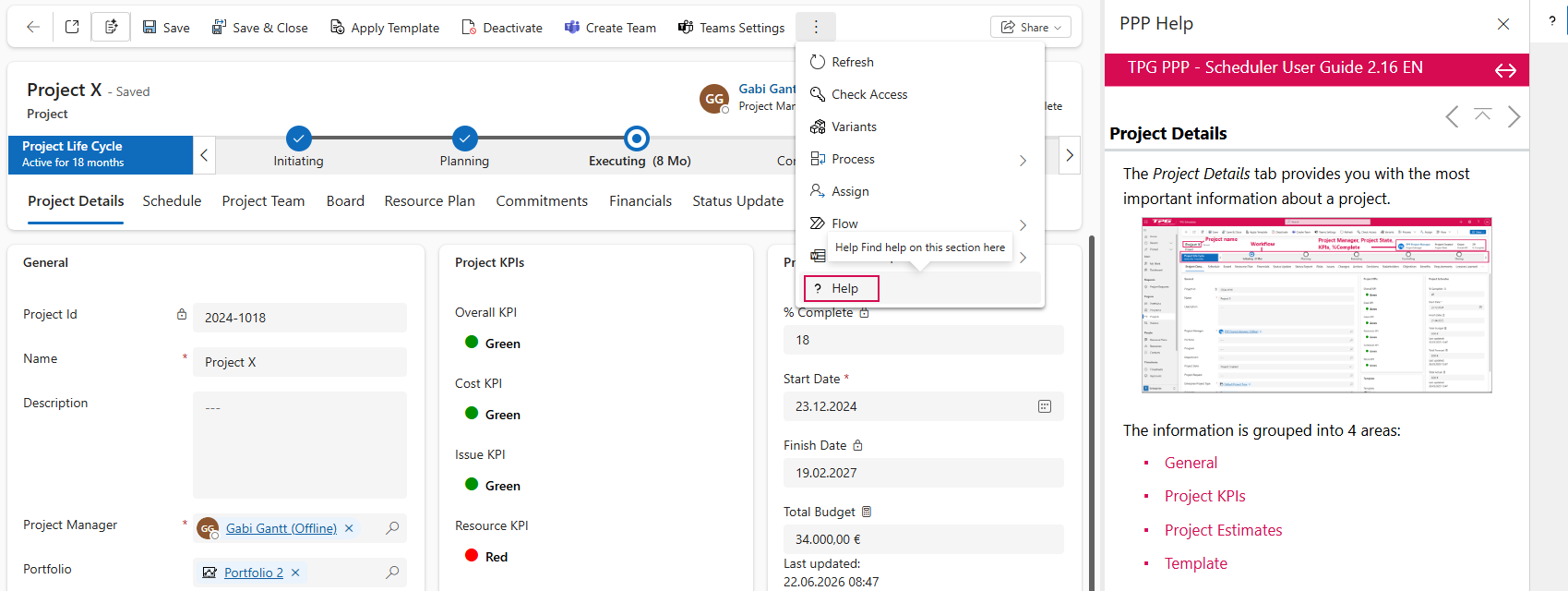
The following table lists additional commands available in the command bar within a project.
The commands displayed depend on the user's permissions.
Commands |
Description |
|---|---|
Create Team |
Create a team in MS Teams for this project |
Teams Settings |
Open the Teams settings for this project |
Check Access |
This command displays which users and teams have access permissions for each tab. You can also view the permissions for each user in detail. |
Variants |
Manage Project Variants (see Project Variants) |
Process |
Switch Processing Mode |
Open Core Suite |
Opens the CoReSuite website in a separate browser tab. |