Scheduler - Table
|
Task planning > Schedule - Views > Scheduler - Table |
The tasks are listed in tabular form in the view on the left-hand side. The following applies:
▪Row = a task
▪Column = attributes of the task (e.g. Name, Start, Finish, Duration, %Complete, etc.)
The columns can be moved using drag & drop.
▶ A list of available columns can be found under Task Attributes.
Columns can be shown and hidden. There are 3 methods for showing columns:
Display multiple columns:
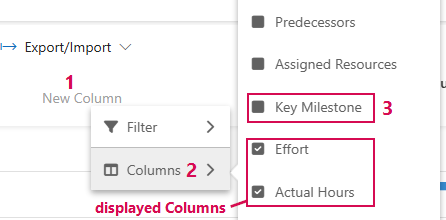
➢Right-click on New Column. (1) ▶ The drop-down menu with Filters and Columns opens.
➢Click on Columns. (2) ▶ A list of all columns opens. All displayed columns are marked with a check.
➢Click on the columns to be displayed. (3)
▶ Columns are displayed in the table.
Or
Selection via drop-down menu:
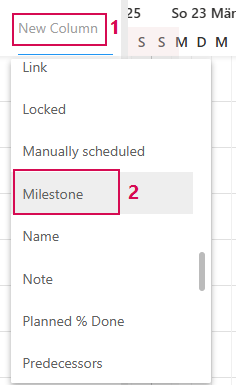
➢Click on New Column. (1) ▶ The drop-down menu with attributes opens.
➢Click on the desired column (e.g. Milestone). (2)
▶ Milestone column appears in the table.
Or
Enter in text field:
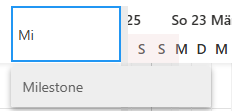
➢Click on New Column. ▶ The drop-down menu with attributes opens.
➢Enter "Milestone" in the New Column field.
▶ Milestone column appears in the table.
▶ It may happen that not all columns are available for selection when you try to show columns. This depends on the configuration of the TPG Scheduler. If you cannot find the desired column, try another method to show columns.
Hide columns:
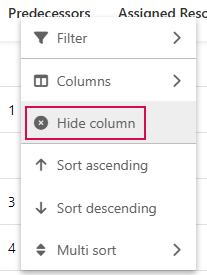
➢ Right-click on the column to be hidden. ▶ The drop-down menu opens.
➢ Click on Hide column.
▶ The column is hidden.
▶ Columns that you hide may no longer be displayed in the drop-down menu if you want to show them again. Reload the project. The column will then be displayed in the drop-down menu again.