Task Attributes
You can use the column options to assign attributes to each task. Various options are available.
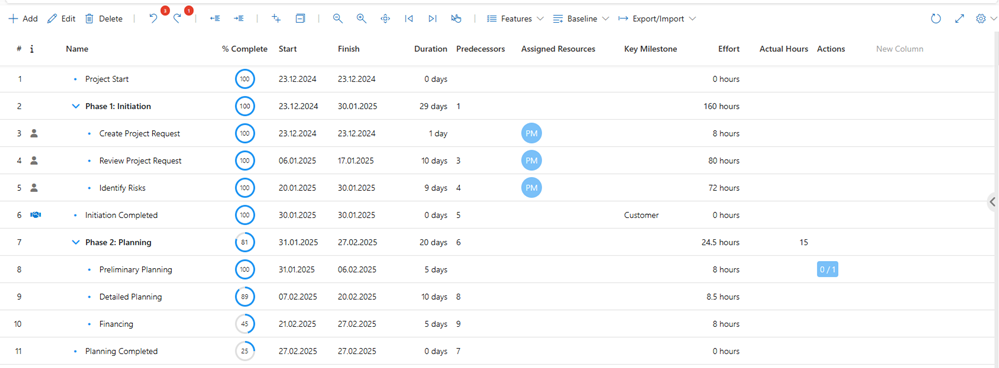
The following columns are displayed by default after project creation:

▪# (number of the task line): Unique number assigned to each task in the project plan.
▪i : Information on the task in the form of symbols, e.g. Assigned Resources  or Key Milestone Customer
▪Name: Name of the task.
▪%Complete: Progress of the task. Percentage of how much of the task has already been completed . (see Progress Indicator)
▪Start: Start date of the task.
▪Finish: End date of the task.
▪Duration: Total time required to complete the process. Specified in days. (see Define Duration of Task)
▪Predecessor: Task that must precede the current task. The cell contains the number of the predecessor task line.
▪Assigned Resources: Resources that are assigned to the task, e.g. people or departments. (see Assign Resources in the Schedule)
▪Key Milestone: Important event or goal in the project.
▪Effort: Estimated amount of work required for the task. Specified in hours.
▪Actual Hours: Actual hours worked to complete the task.
▪Actions: Actions that must be completed during the execution of the task. (see Actions)
Further columns or task attributes:
Columns |
Description |
|---|---|
Start Variance |
Difference between the planned and the actual start date of the task. Positive variance = task starts later than planned Negative variance = task starts earlier than planned |
Finish Variance |
Difference between the planned and the actual end date of the task. Positive variance = task ends later than planned Negative variance = task ends earlier than planned |
Bucket |
Group in which tasks can be collected and organized. |
Duration Variance |
Difference between the planned and actual duration of a task. Positive variance = actual duration is longer than planned duration Negative variance = actual duration is shorter than planned duration |
Effort Unit |
Unit in which the effort for the task is specified e.g. hour. |
Constraint Type |
Assign a constraint to the task: As soon as possible, As late as possible, Must start on, Must finish on, Start no earlier than, Start no later than, End no earlier than, End no later than |
Constraint Date |
Assign the date (day) for the constraint type to the task. |
Color |
Color of the task bar |
Early Start |
The earliest date on which a task is allowed to start. |
Early End |
The earliest date on which a task is allowed to finish. |
Baseline Duration |
Planned total time required to complete the task, specified in days. |
Baseline Start |
Scheduled time at which the task starts. |
Baseline Finish |
Scheduled time at which the task ends. |
Total Slack |
Total period provided as a buffer. |
Locked |
Task cannot be edited or moved. |
Inactive |
Task is deactivated (see Deactivate Task) |
Calender |
Assign task to a calendar. (see Set Calender for a Task) |
Link |
Link between tasks or projects.
Hardlink = A hardlink is a fixed and direct connection between two tasks or projects. Changes to a task or project are immediately transferred to the linked tasks or projects. Softlink = A soft link is a flexible connection that refers to the path or position of another task or project. If the original task or project is changed or deleted, the soft link can become a broken link. |
Manually scheduled |
Plan the task manually. The start date, finish date and duration are set by the project manager. |
Milestone |
Event in the project e.g. completion of a project phase. |
Successor |
Task that follows the current task. The cell contains the number of the operation line of the successor. |
Note |
Comments on the task (see Add Note) |
WBS |
Work Breakdown Structure, hierarchical representation of all content levels of a project. |
Scheduling Mode |
Mode for scheduling tasks within a project. There are three scheduling modes: Fixed Duration, Fixed Effort, Fixed Units. (see Define Scheduling Mode) |
Scheduling Direction |
Method used to structure the scheduling of a project: Forward or Backward |
Priority |
Importance and urgency of a task: Urgent, High, Medium, Low |
Ignore Resource Calendar |
The calendar of the assigned resource is not considered when scheduling a task. |
Rollup |
Display subtasks and milestones in the Gantt chart directly under the bar of the higher-level summary task. (see Create Rollup) |
Sequence |
The order in which tasks are performed. |
Deadline |
Time (date) by which the task/milestone must be completed. |
Late Start |
Latest time (date) at which a task may start. |
Late End |
Latest time (date) at which a task may end. |
Todos |
Jobs that need to be completed within the task. |
Show in timeline |
The task is displayed in the timeline above the table and the Gantt chart. Timeline must be shown. (see Schedule - Buttons) |
▶ The columns and task attributes listed are available to you in the TPG Scheduler. It is possible to add further columns and modify the TPG Scheduler to meet your specific requirements. Please contact your administrator or TPG Support for more information.
Assign task attributes:
➢Show the desired column (see Schedule - Table)
➢Fill in the cells as described in the following chapters.